Admin Screen Tour
Each screen below shows the phone version first. Tap a screenshot to open it full size; long pages are cut short here, and the full image shows the whole page. The desktop version of each screen is linked underneath it.
These screenshots use invented demo data. The ward ("Maple Hollow 3rd Ward"), the ministers, the families, the phone numbers (555 numbers) and the addresses are all made up. They were taken on October 4, 2026, from the app running on a test setup, and retaken since where a screen changed or its framing was corrected; every retake shows the same October 4 demo ward.
For the full written instructions, see the Administrator Guide.
For a short checklist of what to do each day, see the
Administrator Daily Guide. The real sign-in page is
https://ministering.beaconpointe2nd.org/login.
How a visit gets scheduled
- Texts, first try. The app texts everyone who signed up at
/join, and reads their replies. - Messages, if they can't be texted. You send the same message from your own phone and log what they say back.
- Calls, if that stalls. You phone them, with open times on screen, and book in one click.
Most of an admin's day is the second and third steps, plus Escalations, which lists everything the app couldn't move forward on its own.
On this page: Sign in · Dashboard · Escalations · Messages · Deliveries · Calls · Visits · Coverage · Close-out · Roster · Person details · Signing members up · Companionships · View as leader · Sign-ins
Getting in
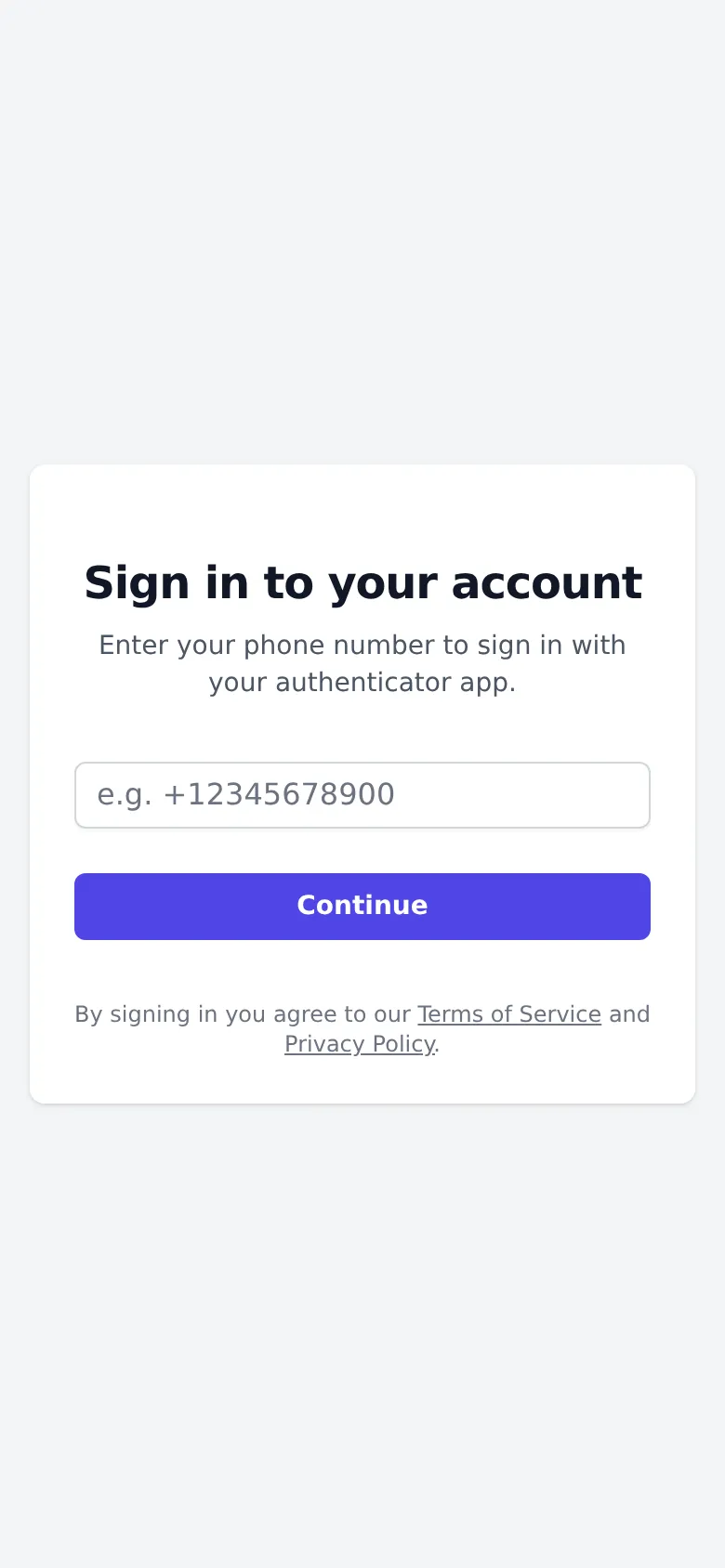
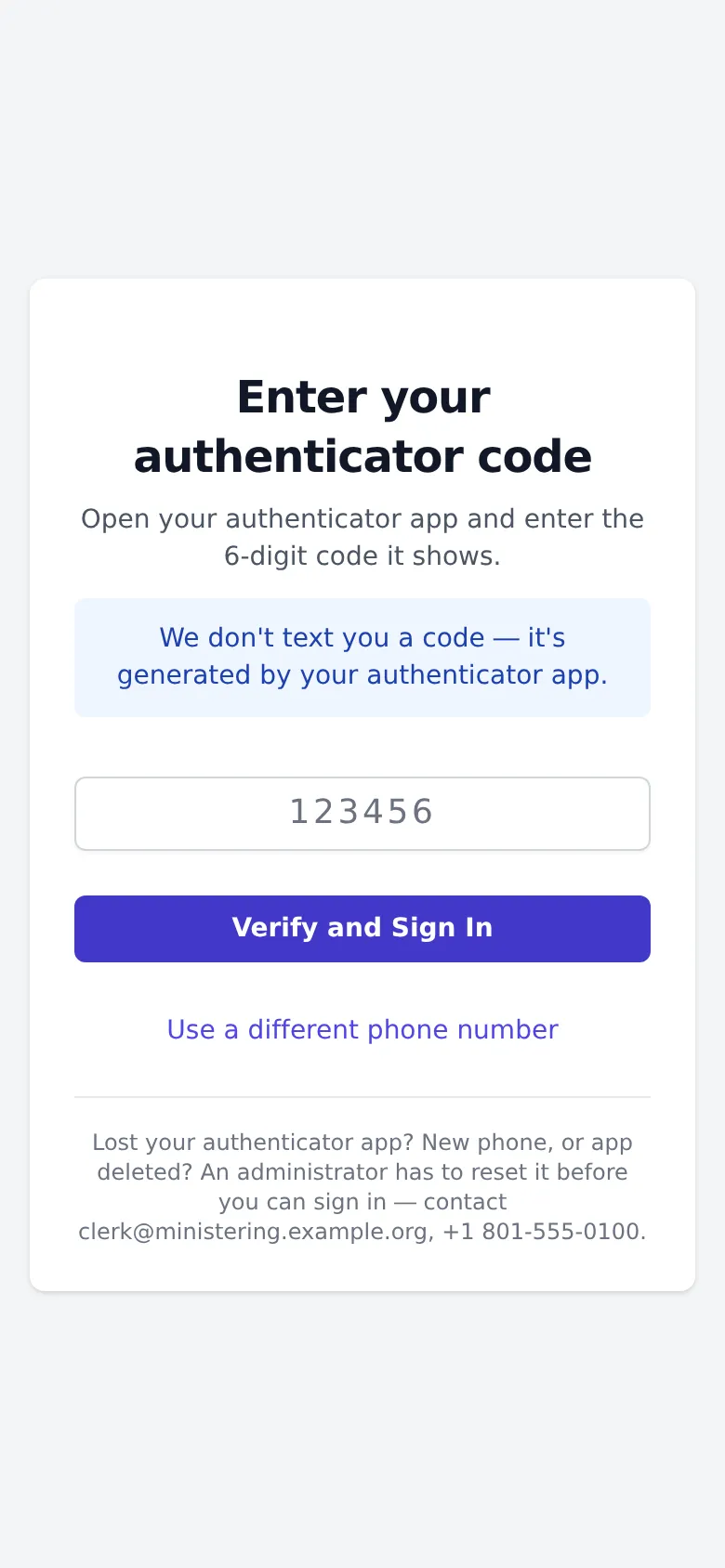
Sign-in uses an authenticator app on your phone. There is no password and no code by text.
Signing in
Page: /login
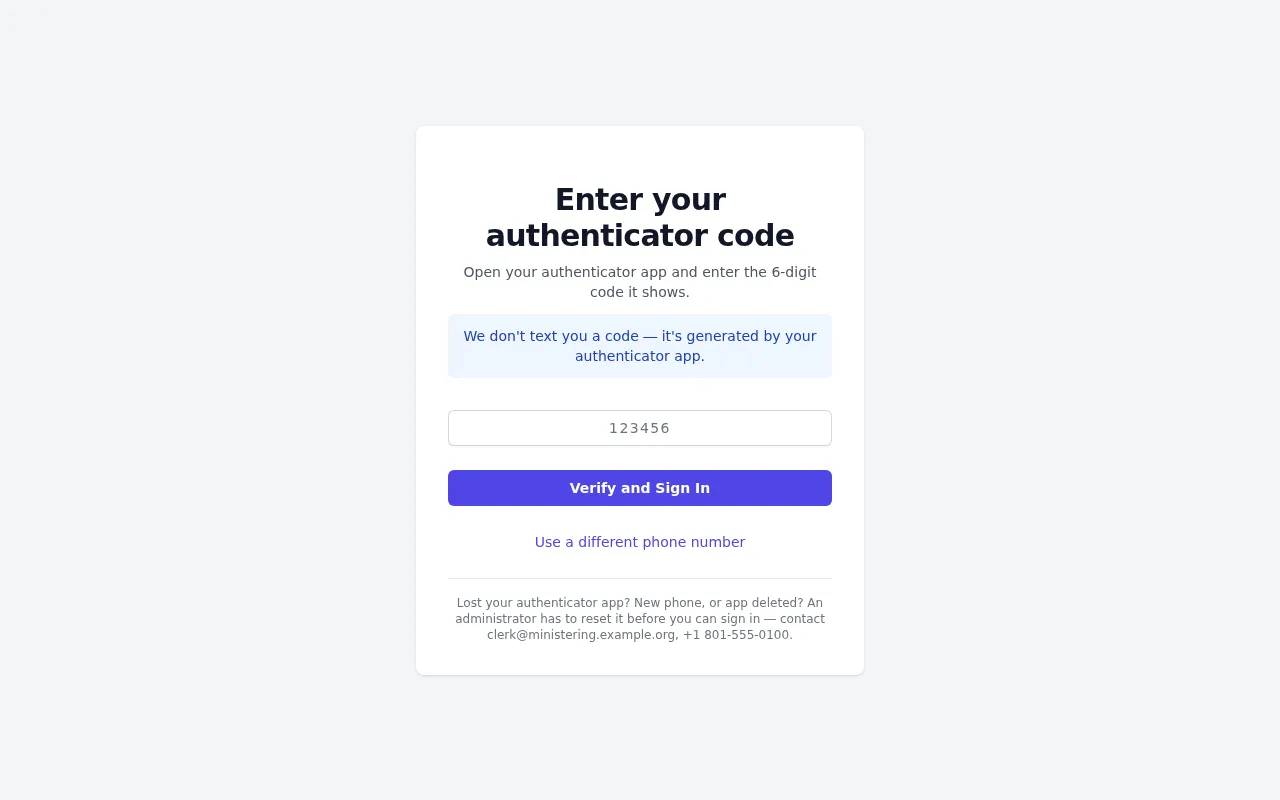
Desktop: phone-number step · code step
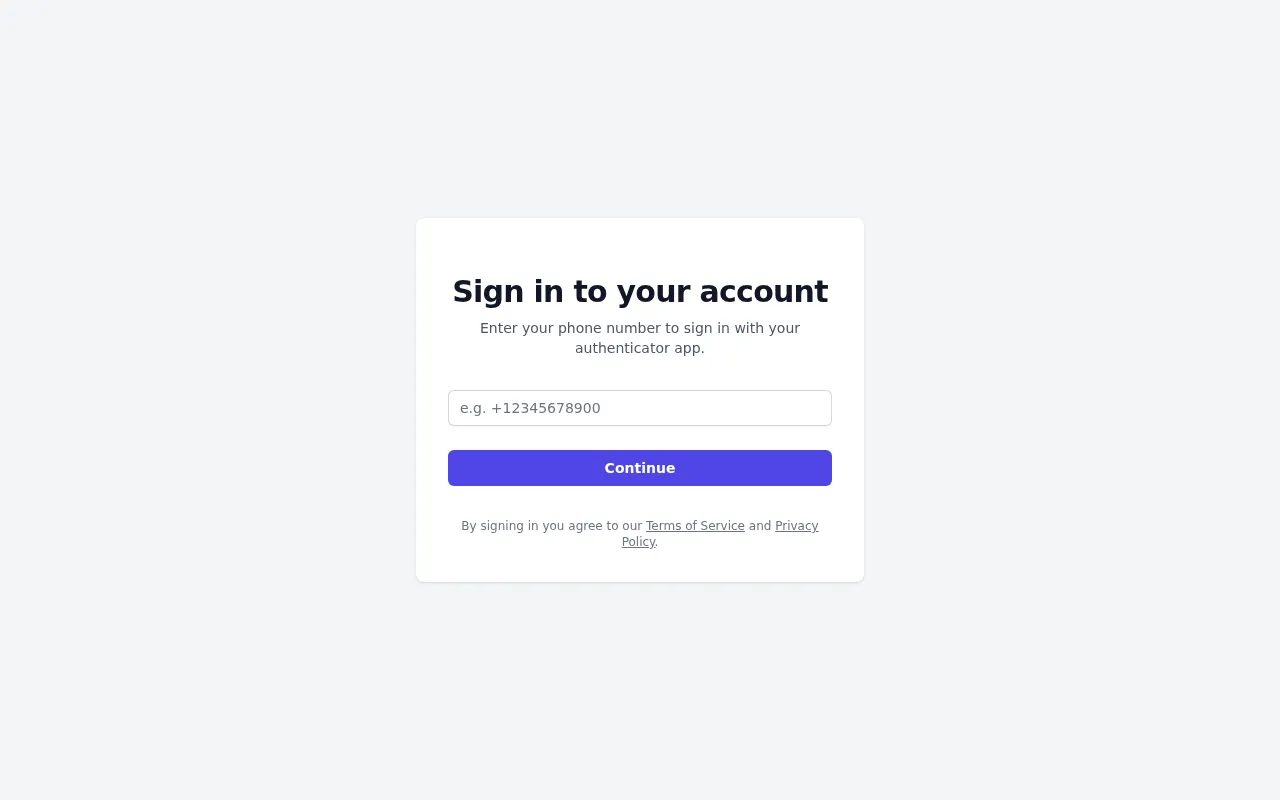
- Enter your mobile number and press Continue.
- Open your authenticator app (Google Authenticator, Authy, 1Password…) and type the current 6-digit code. Press Verify and Sign In.
The first time, you scan a QR code into the app instead. Use a different phone number takes you back a step.
Lost phone? Another admin opens the Roster, presses ⋮ → Reset Auth on your row, and gives you the one-time code it shows. It works once, within 7 days.
Dashboard and navigation
Page: /admin
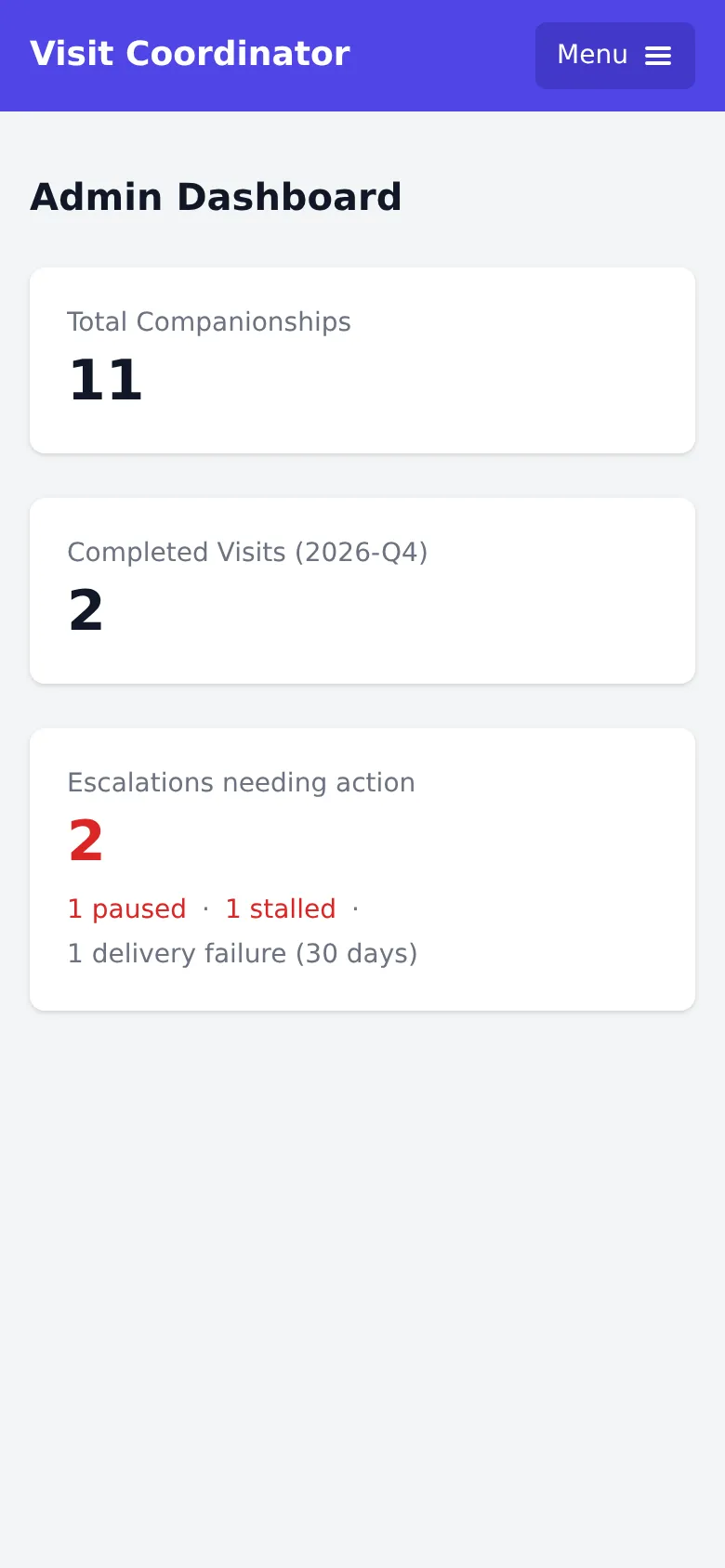
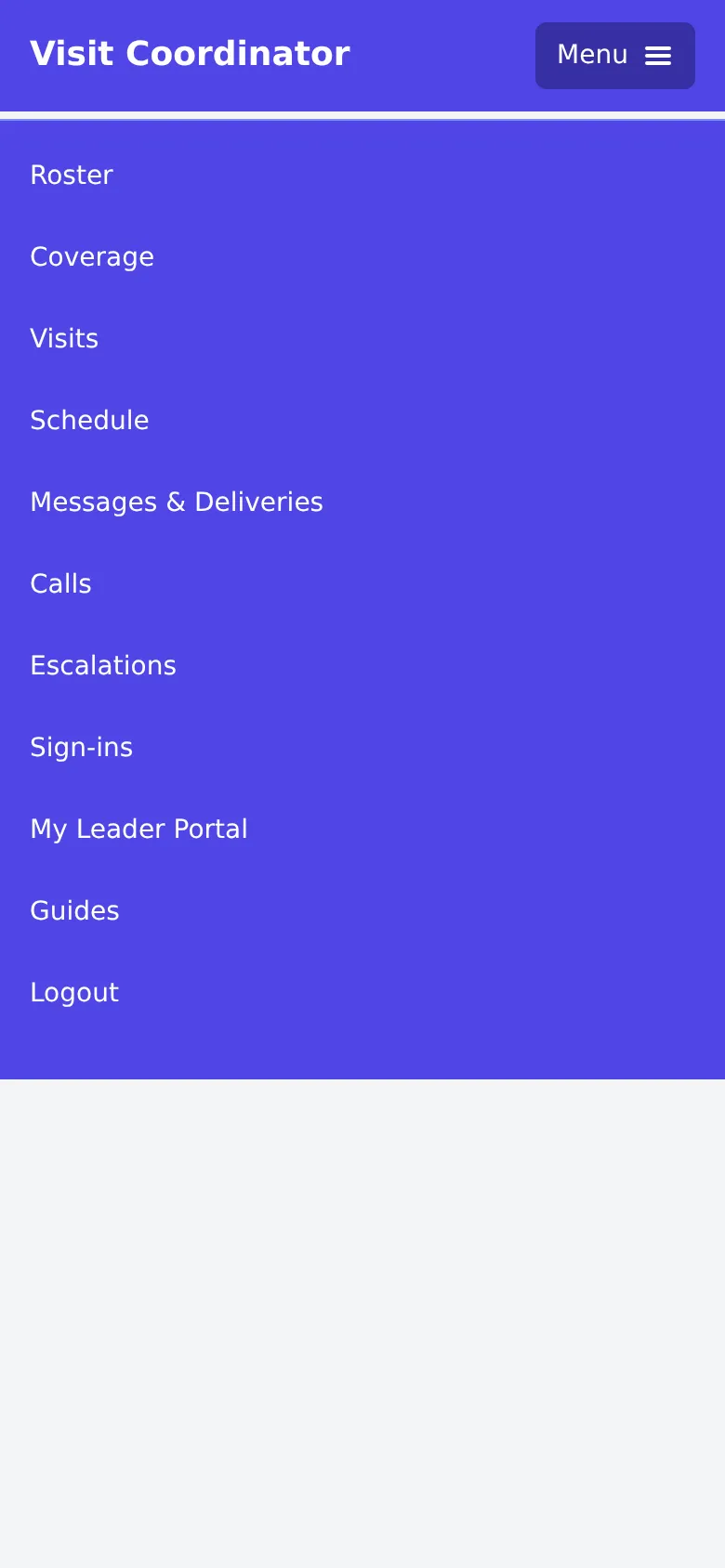
Desktop: dashboard. A browser window 1280 pixels or wider (at normal zoom) shows the top bar instead of the menu.
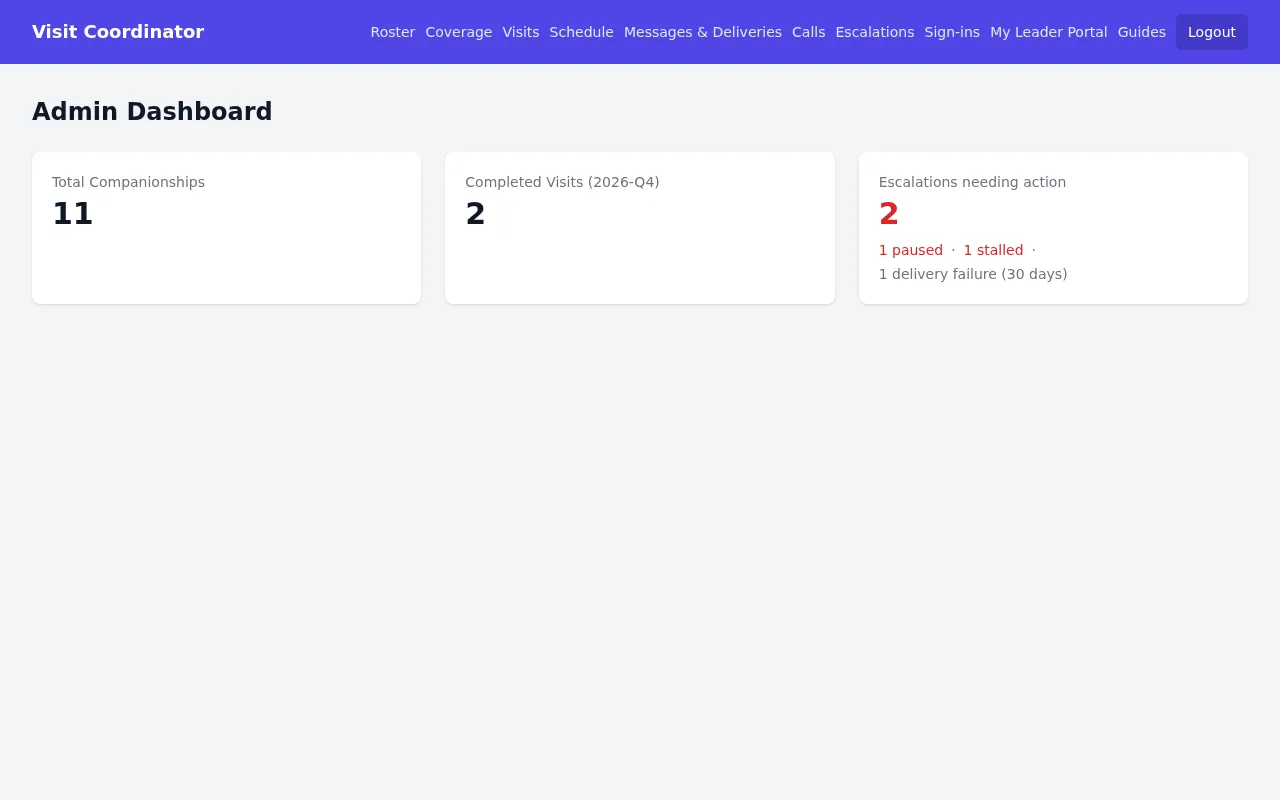
Three counts: companionships, completed visits this quarter, and escalations needing action. That last number adds up the paused threads (under Paused threads) and the stalled ones (under No reply); the line under it shows each, in red when there are any, plus the delivery failures from the last 30 days. The rest of Escalations is not counted, so a zero on the tile does not mean the page is empty.
Every page is in the top bar. On a phone, on most tablets, or in a window narrower than 1280 pixels (at normal zoom), the bar collapses into Menu. Schedule opens with "Choose a leader": pick one to see their visits, offered times and open time. If you are also a leader, My Leader Portal takes you to your own availability and visits. Guides opens these guides in a new tab, so you keep your place in the app.
Where to start: the dashboard is a summary only. Start your day on Escalations, then Messages, then Calls.
Every day
About 5 to 10 minutes. These three pages are where members are waiting on a person.
Escalations
Page: /admin/escalations

Desktop: Escalations
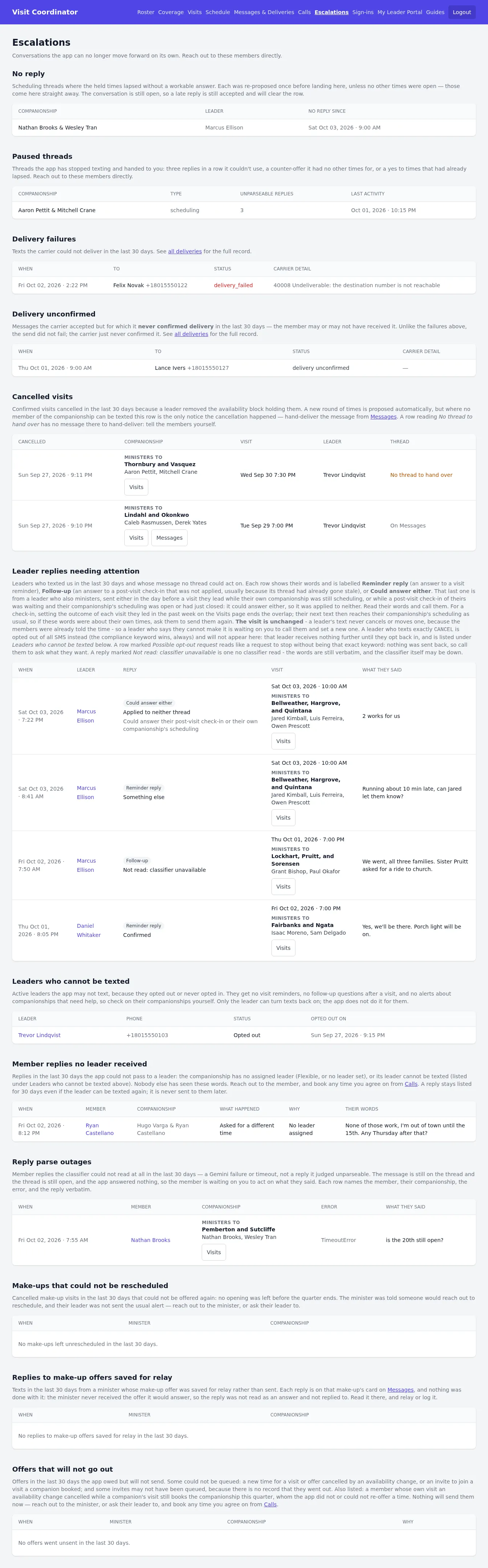
One long page of sections. Each one starts with a sentence saying what it lists, and an empty one says so in a single line, so a quiet day takes seconds. Most sections look back 30 days.
The sections, top to bottom:
- No reply. Offered times lapsed with no workable answer. The thread is still open; a late reply clears it.
- Paused threads. The app has stopped texting them, for one of three reasons: three replies in a row it couldn't understand, a counter-offer it had no other times for, or a yes to times that had already lapsed. Reach out to them directly.
- Delivery failures. The carrier couldn't deliver a text. Check the number.
- Delivery unconfirmed. The carrier took it but never confirmed delivery.
- Cancelled visits. A leader removed availability under a booked visit. New times go out automatically. The row names the companionship, with a Visits button and, when there is a message to hand over, a Messages button. "No thread to hand over" means telling the members yourself.
- Leader replies needing attention. Usually "I can't make it." A leader's text never moves a visit; call them. Each row shows the leader's own words, labelled Reminder reply, Follow-up or Could answer either. The last is a leader who also ministers, whose text could have meant either conversation: set the visit outcome on Visits.
- Leaders who cannot be texted. They get no reminders or alerts, so watch their companionships.
- Member replies no leader received. Nobody else has seen these words. Reach the member.
- Reply parse outages. The app couldn't read a reply at all and answered nothing.
- Make-up sections. Make-ups with no time left, replies to offers saved for relay, and offers that couldn't go out.
- Connections disconnected after repeated wrong codes. Appears only when there is something to show. An assistant connection kept sending wrong codes when unlocking changes, so the app cut it off. Ask the person whether it was them.
What fixes a row: nearly always the same thing. Reach the person, agree on a time, and book it from Calls. Rows clear themselves once the visit is booked or the reply arrives.
Messages: relaying by hand
Page: Messages & Deliveries → Conversations

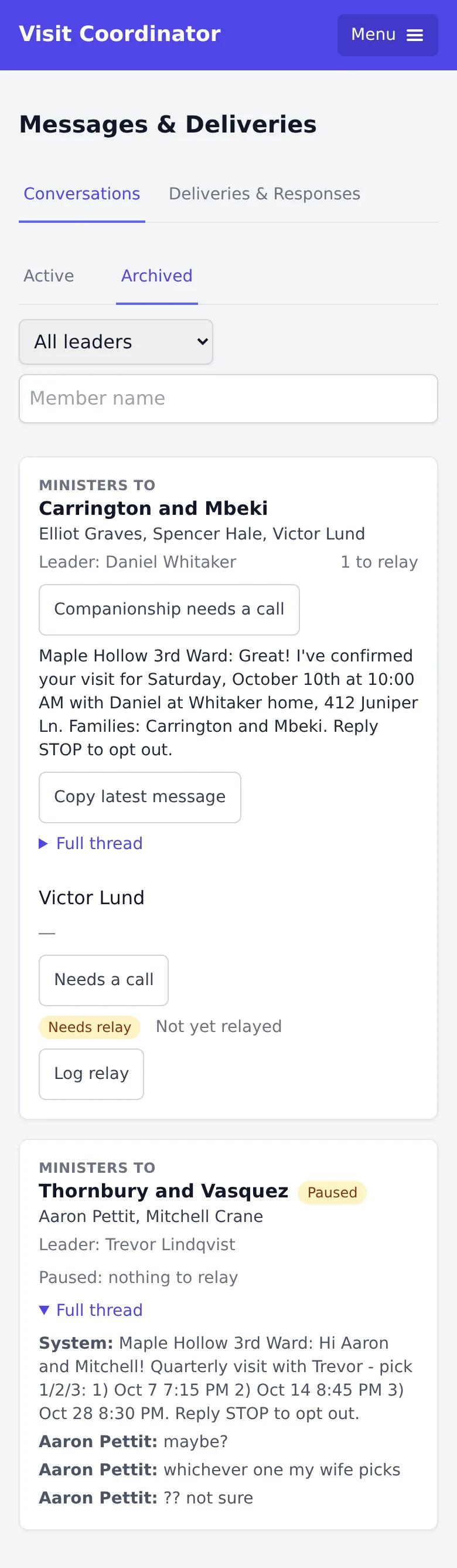
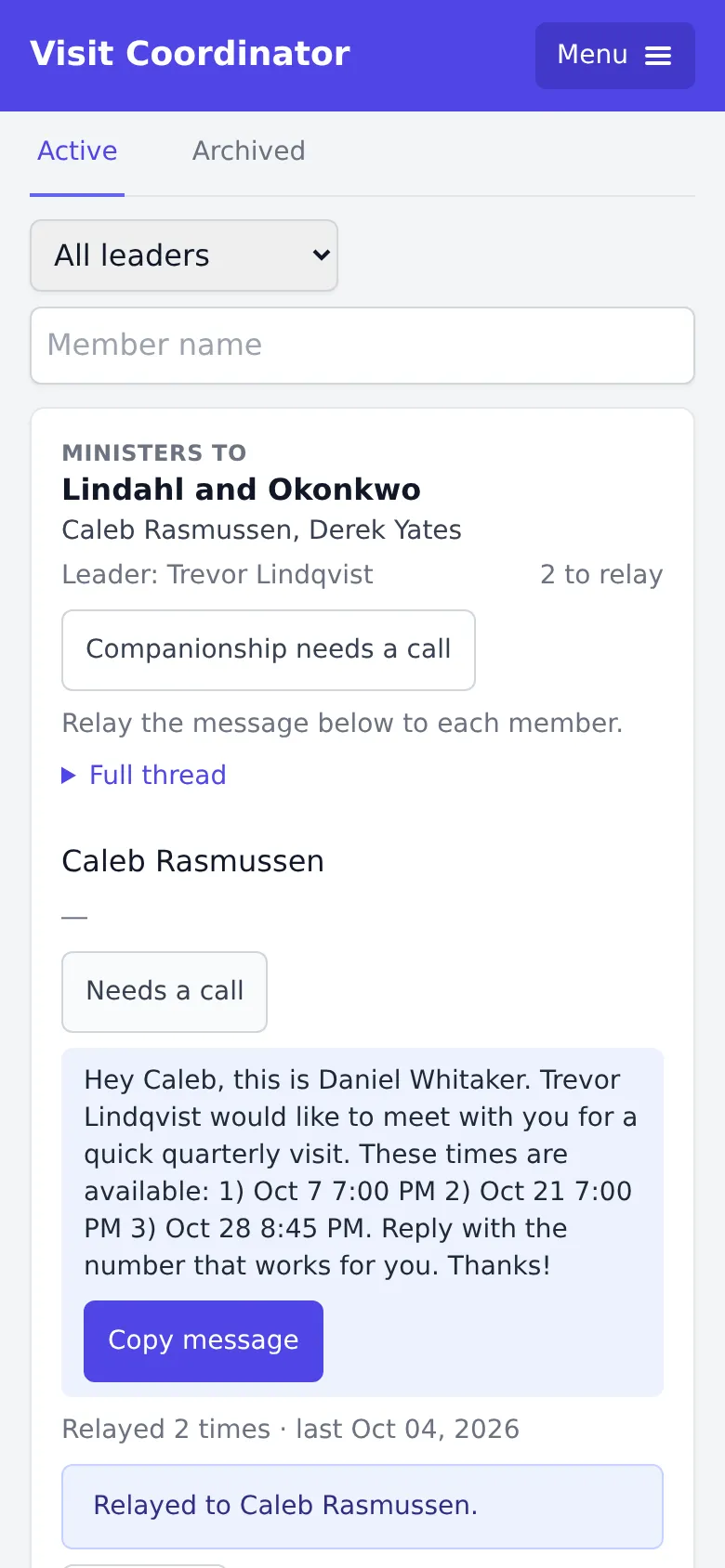
Desktop: Active · Archived. The relay confirmation is shown on a phone only.
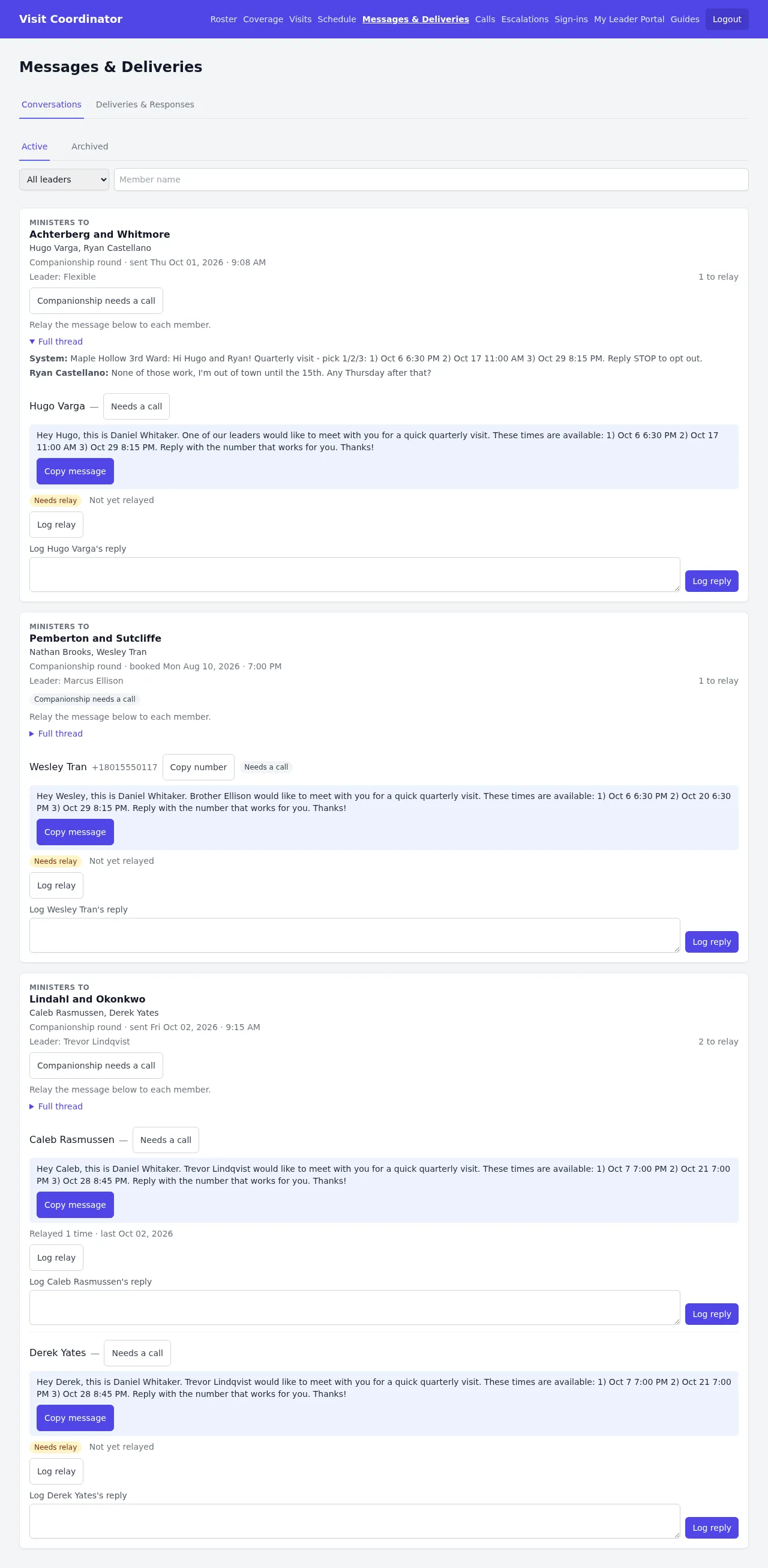
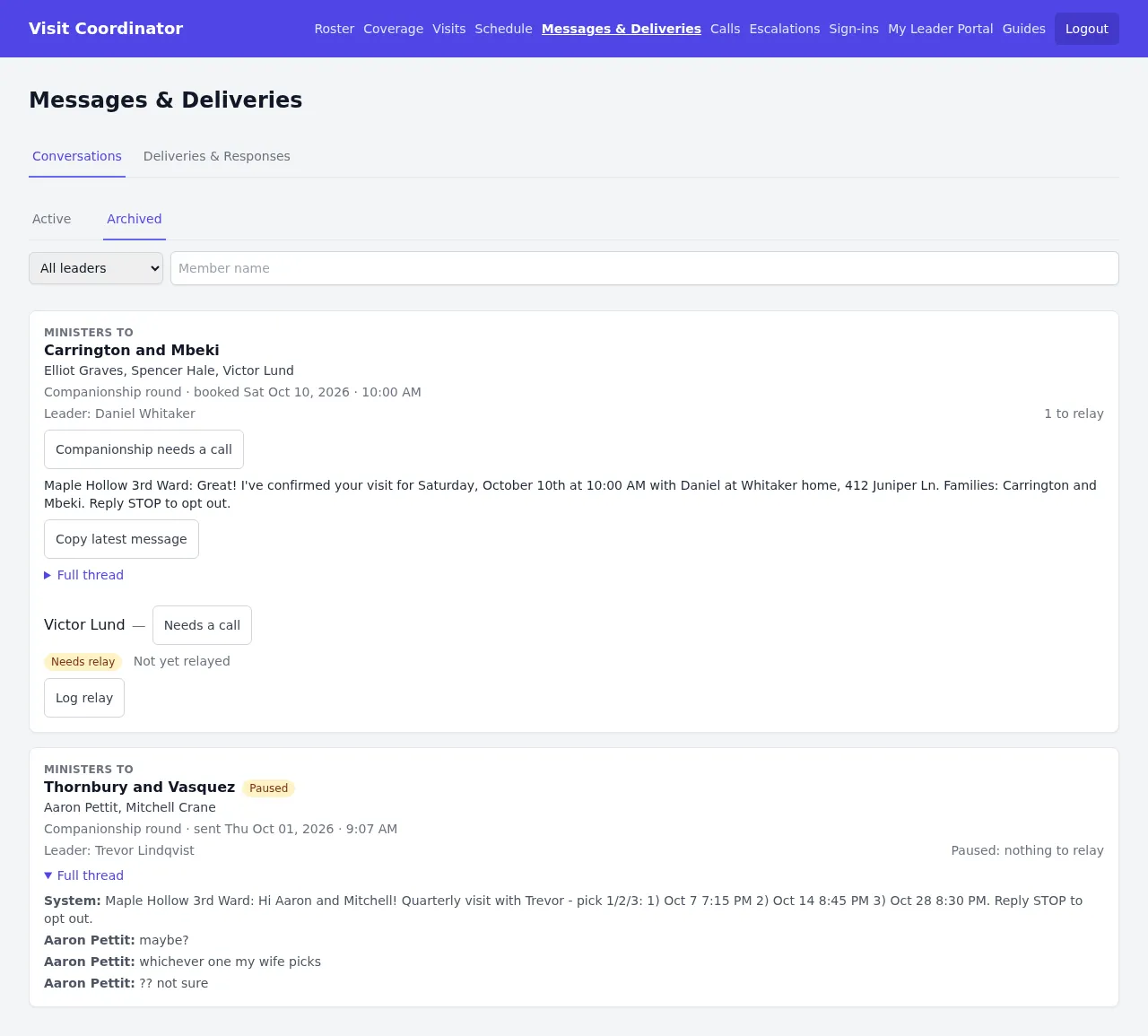
One card per scheduling thread that has a member the app may not text (Pending or Opted out). Each card is headed Ministers to with the families and the ministers, then the leader and how many members still need a relay, such as "1 to relay". A paused thread that owes no relay has a read-only card too (see Archived below).
For each member on a card:
- Copy number and Copy message, then send it from your own phone. The text is already written as you, with their first name.
- Press Log relay. "Relayed to …" appears in that member's row and the counter changes to "Relayed 1 time · last …", so the next admin knows.
- When they answer, type their words into the reply box and press Log reply. The app reads it like a text: it books the visit, offers new times (which appear here to relay), or pauses the thread after three replies it can't use.
Full thread shows everything sent and received so far, with each member's name. Needs a call puts one member on the Calls page; Companionship needs a call puts the whole group there, and turns into a badge once they're on the list.
Archived holds threads that are finished, closed at quarter's end, or paused. Some still owe a relay, such as a booking confirmation to a member who isn't signed up: use Copy latest message. A paused thread has a card here as well. When it owes nothing to relay, the card is read-only: the heading, a Paused badge, the leader, "Paused: nothing to relay" and the thread, with no buttons (Thornbury and Vasquez, below Carrington and Mbeki in the full phone and desktop images; the cards sort by leader name). A paused thread is on Escalations too.
The message is written for you. It opens "Hey Hugo, this is …" in your name. When the companionship has no particular leader, it says "One of our leaders would like to meet with you."
Deliveries & Responses
Page: Messages & Deliveries → Deliveries & Responses

Desktop: Deliveries & Responses
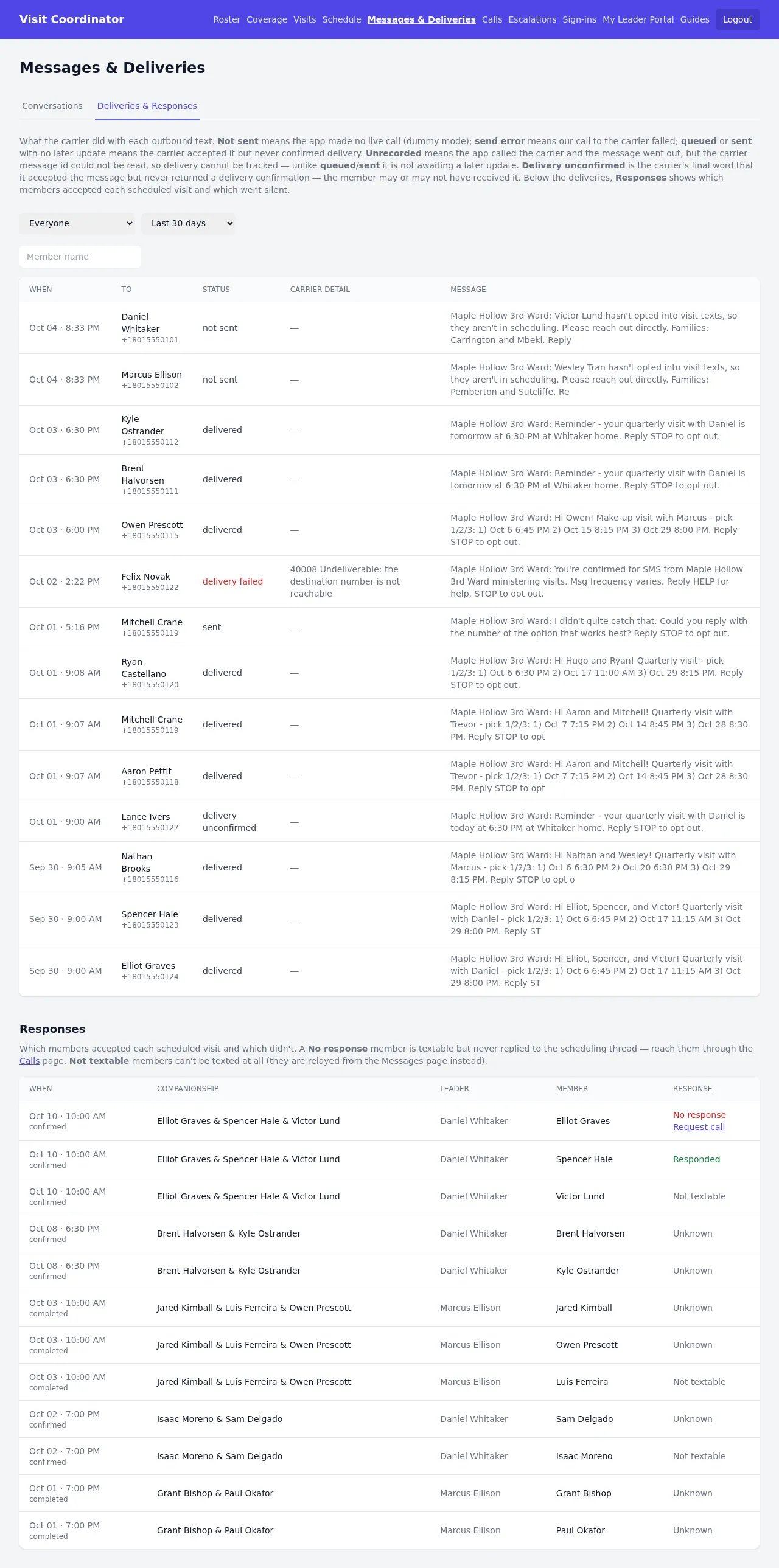
Every text the app sent, with what the carrier said about it. Filter by person and by window (7, 30 or 90 days, or a year). Check here before deciding "they never got anything".
- delivery failed: the carrier rejected it. The carrier detail says why.
- delivery unconfirmed: accepted, but delivery was never confirmed.
- send error: the app couldn't reach the carrier at all.
Below the deliveries, the Responses table shows who answered each scheduled visit. No response means textable but silent, with Request call beside it. Not textable means relay through Messages. Unknown means the visit has no scheduling thread linked to it, so there's no record of who replied.
Calls
Page: /admin/calls
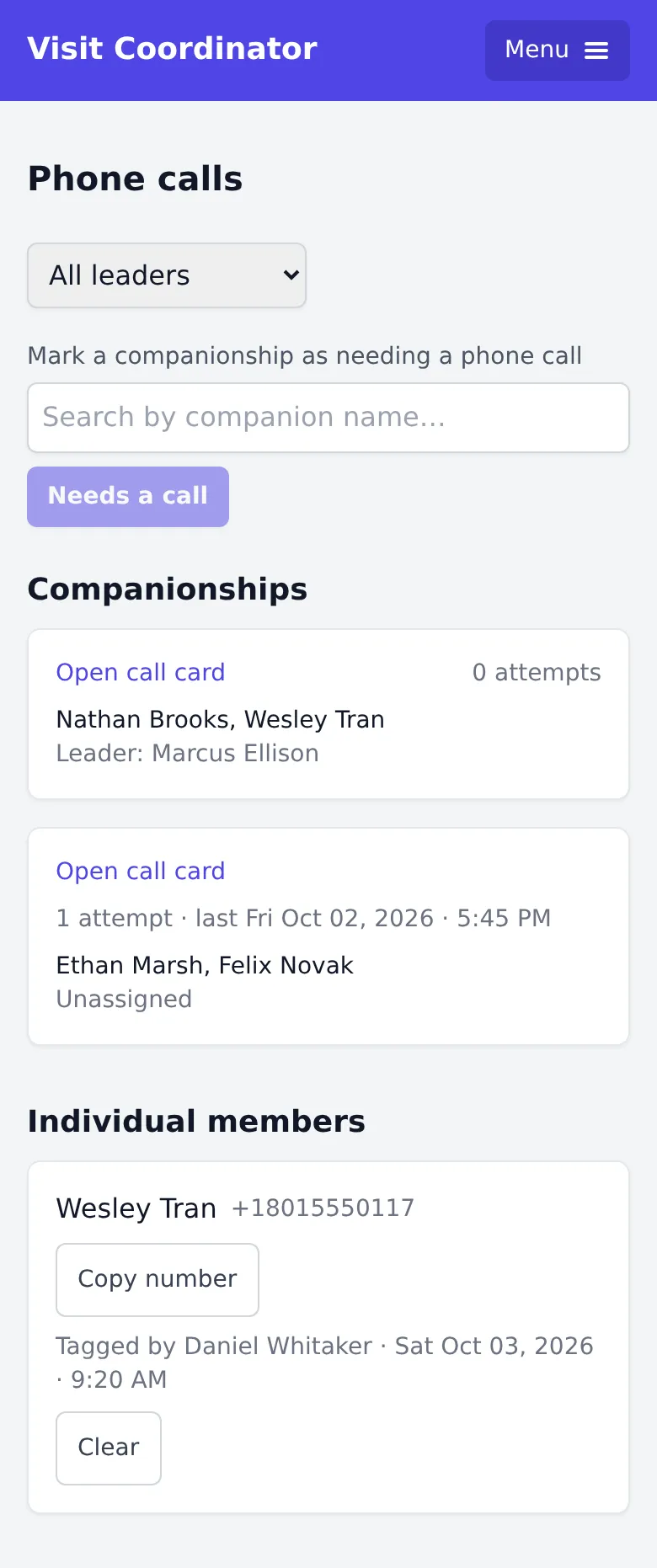
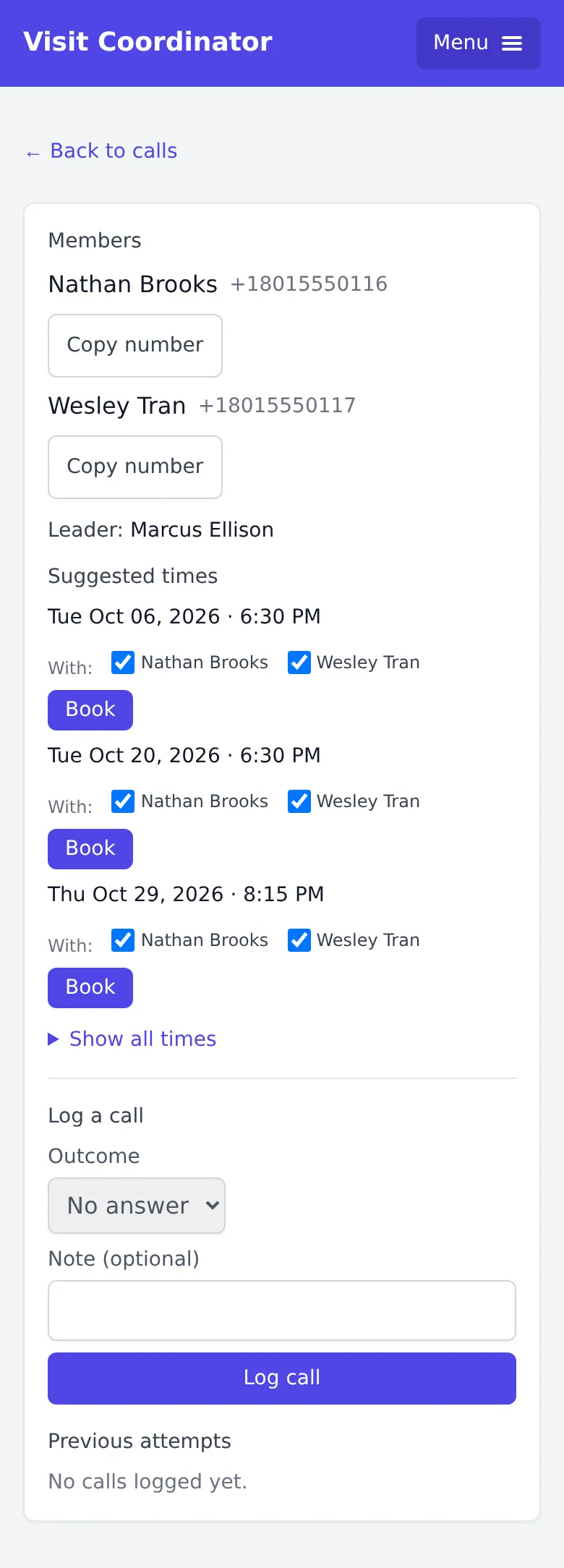
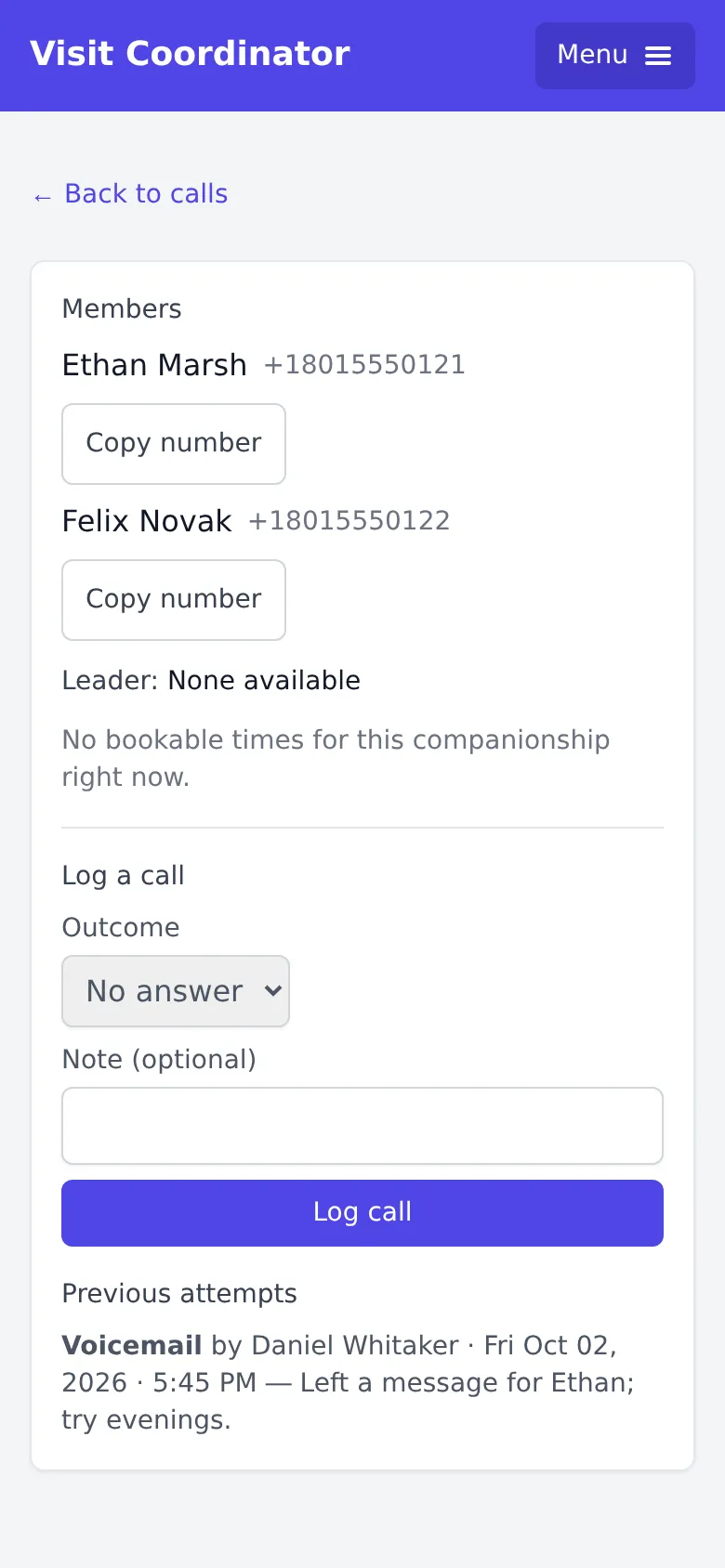
Desktop: call list · call card · no leader
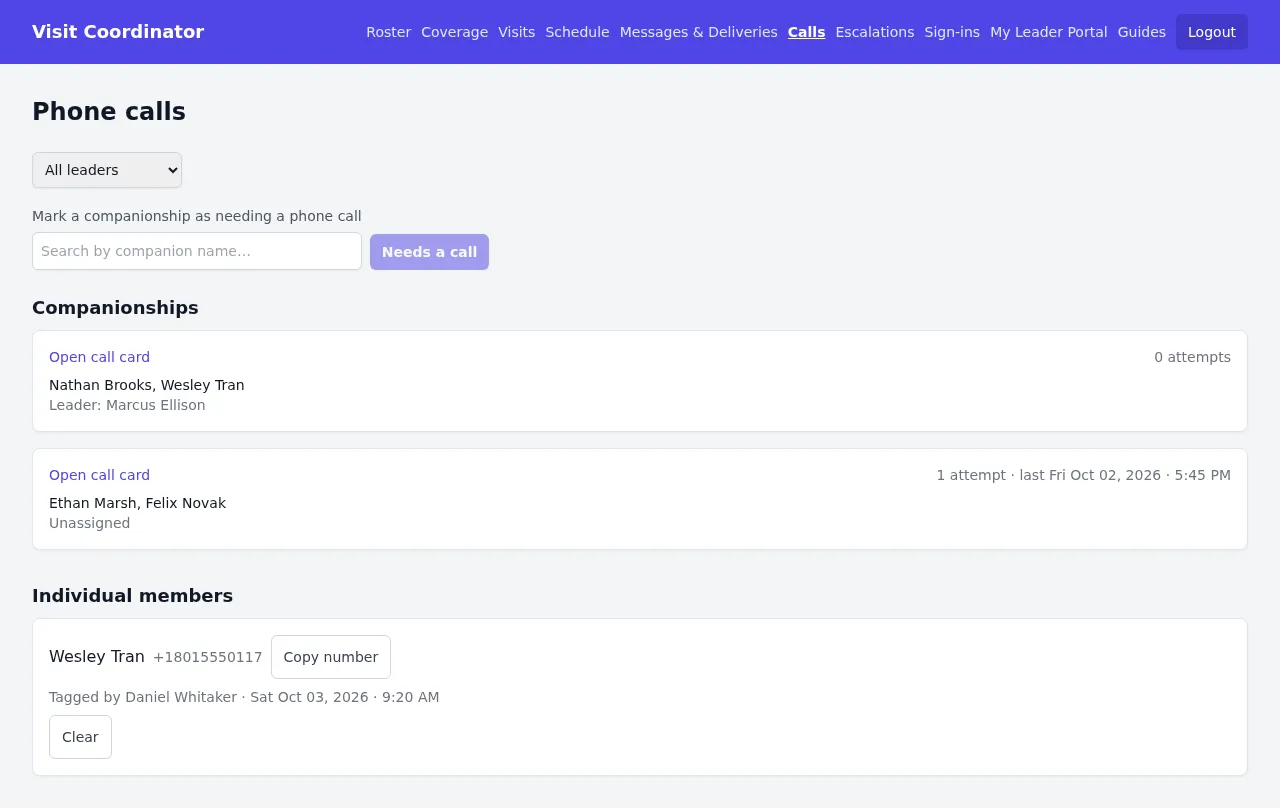
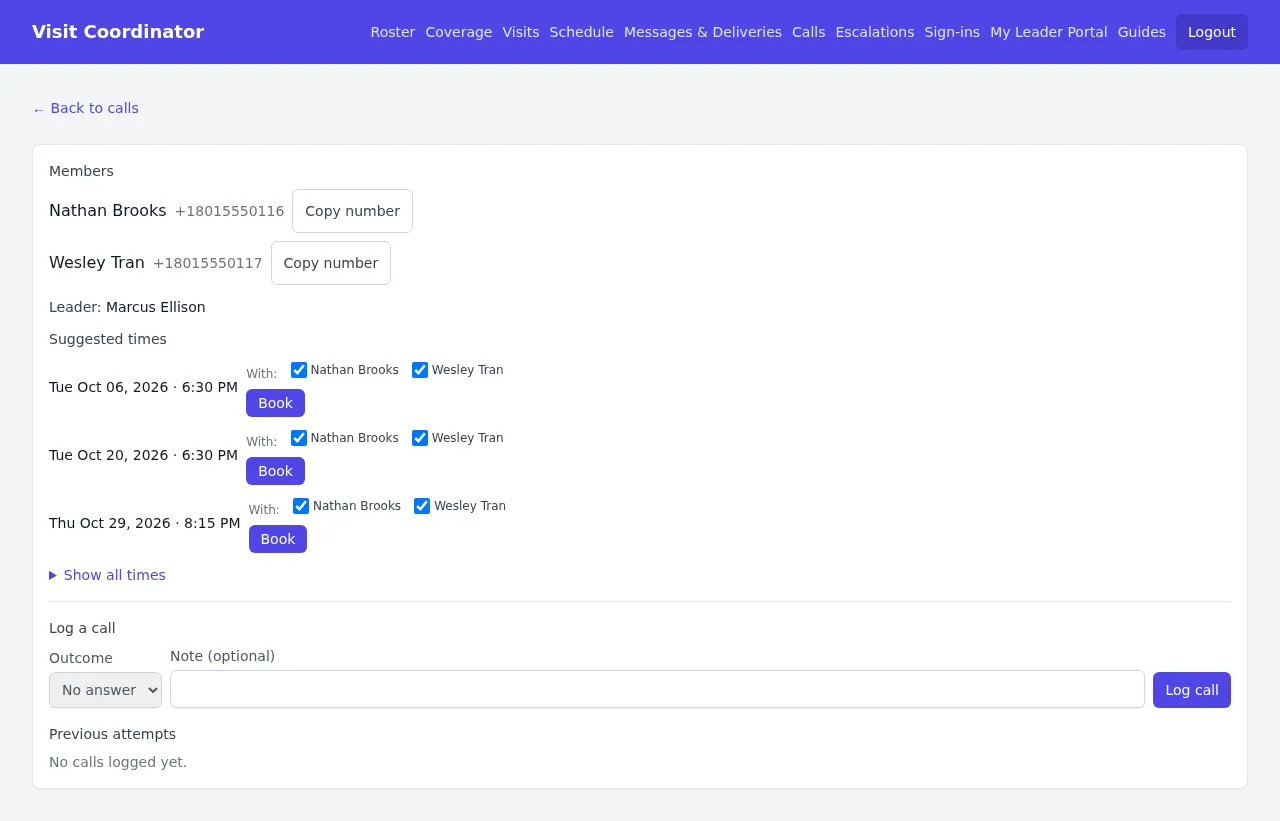
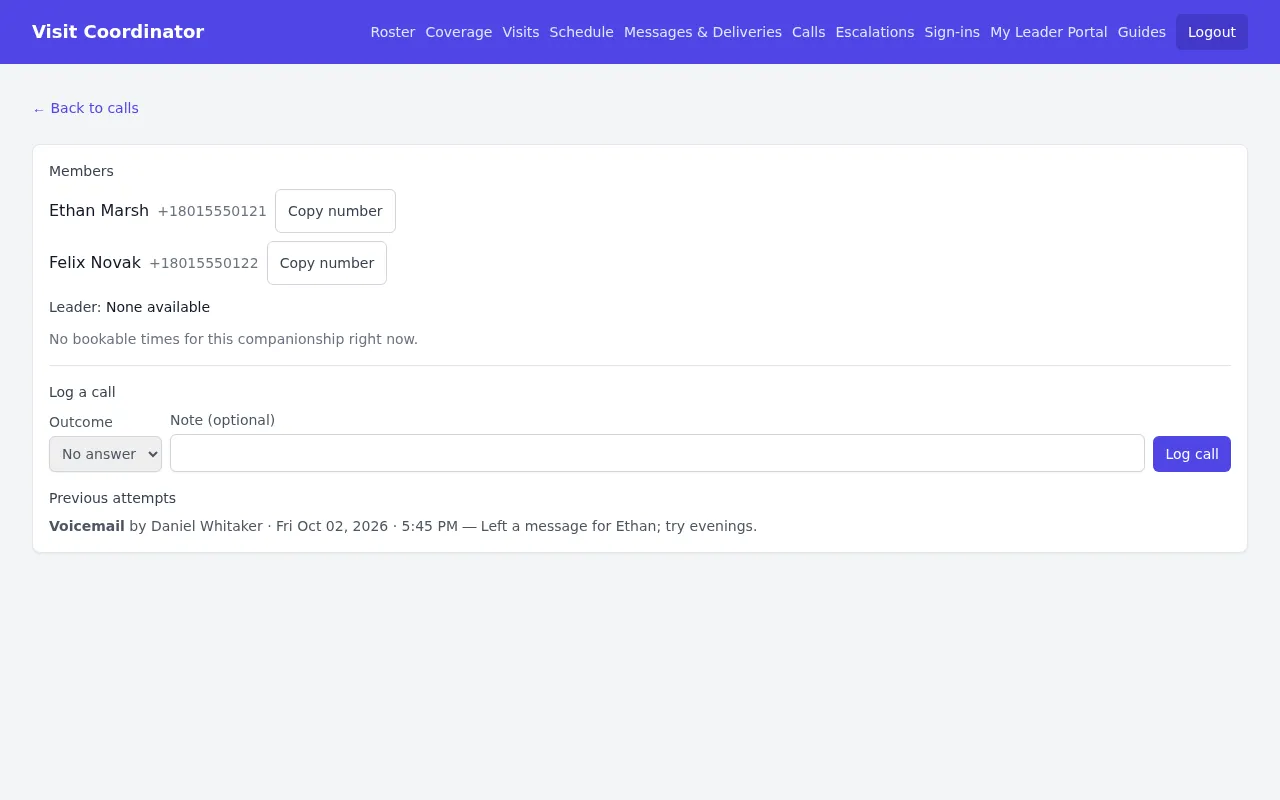
Nothing appears here by itself. People arrive when someone presses Needs a call, or when you search for a companionship at the top of this page. Requests stay until they're resolved; they don't expire.
On a call card:
- Each member with Copy number, and the leader whose calendar you're booking.
- Three suggested times. Tick who is coming under With: and press Book while they're on the line. Show all times lists every other opening.
- No luck? Under Log a call, pick an outcome (No answer, Voicemail…), add a note, and press Log call. It shows under Previous attempts for whoever calls next.
Booking confirms the visit, schedules reminders, texts members who signed up, and resolves the request. Individual members tagged from Messages are listed separately; Clear means "handled", not "booked".
"Leader: None available" and no times (third screenshot) means the companionship has no leader. Use Change leader on Roster → Companionships.
A few times a week
Record what happened, and look for companionships that still need a visit.
Visits
Page: /admin/visits

Desktop: Visits
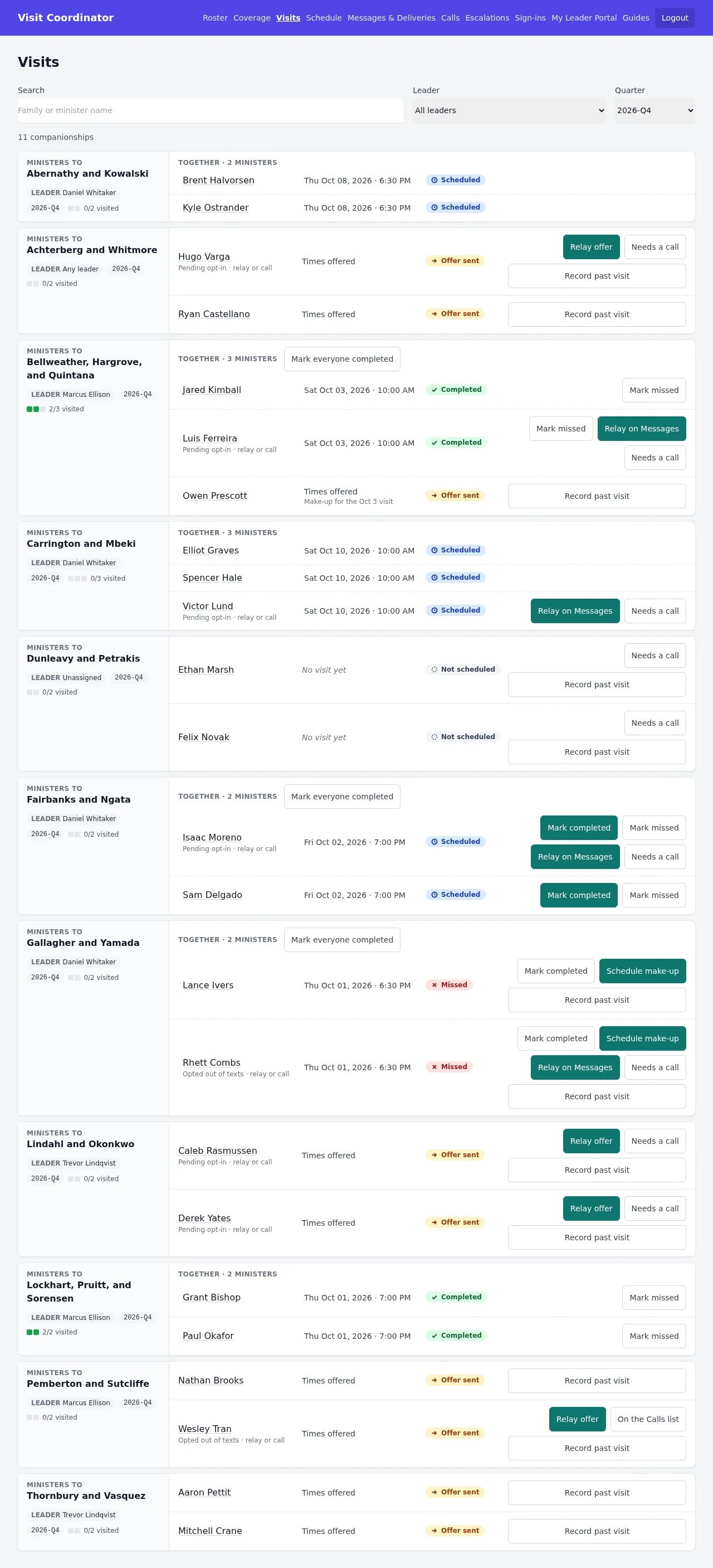
One card per companionship for the quarter you pick: the families, the leader, and a progress count like "2/3 visited", then one line per minister with their date and status.
- Scheduled: booked and still ahead, or past and waiting for a mark.
- Completed: the visit happened.
- Missed: it didn't. A make-up may be possible.
- Offer sent: times are out and waiting for an answer.
- Not scheduled: no visit and no offer yet.
Buttons only appear when they apply:
- Mark completed / Mark missed, once the visit time has passed. Mark everyone completed does the whole visit. Leaders are also asked by text, so many fill in on their own.
- Schedule make-up on a Missed line offers that minister new times alone. If it can't, it's greyed out with the reason.
- Relay offer / Relay on Messages for someone marked "Pending opt-in" or "Opted out of texts".
- Needs a call, or On the Calls list once they're there.
- Record past visit on a Missed, Offer sent or Not scheduled line this quarter, for a visit that happened outside the app: enter when and who, and they show as Completed. Nothing is texted.
Click a minister's name to open their details page.
Coverage
Page: /admin/coverage

Desktop: Coverage
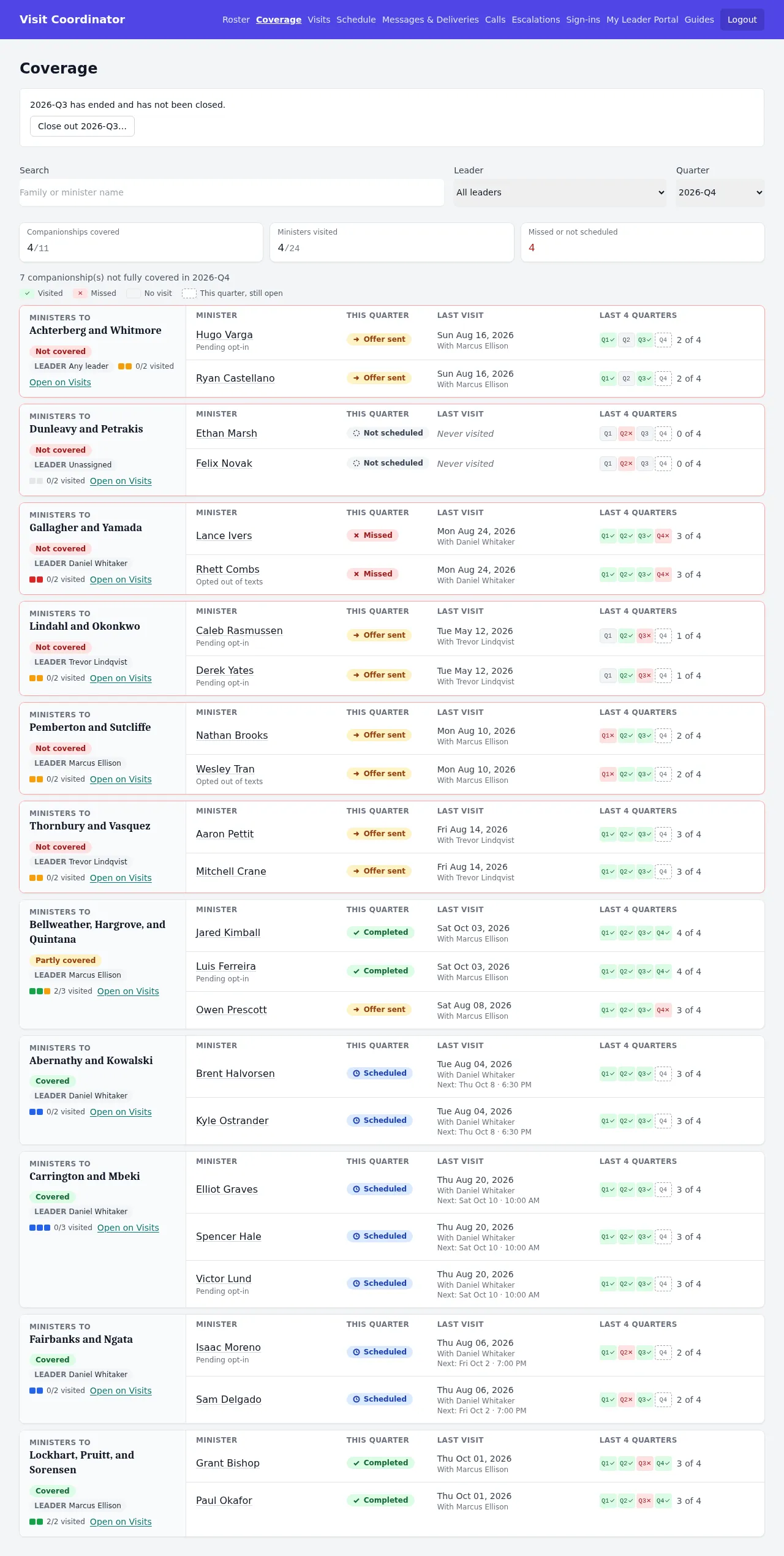
The quarter at a glance. Three totals at the top (companionships covered, ministers visited, missed or not scheduled), then one card per companionship, with the ones needing attention first.
- Not covered: nobody in the companionship has a visit.
- Partly covered: some ministers do, some don't.
- Covered: everyone has a visit.
Each minister line has Last visit and a Last 4 quarters strip: a check for visited, a cross for missed, dashed for the quarter still open. Coverage is read-only; Open on Visits takes you where you can act.
Near quarter's end, this is the page to work through. Every Not covered card is a companionship that will be marked missed at close-out.
Start of each quarter
The app starts the new quarter's scheduling itself. You check that the old quarter closed.
Closing out a quarter
Page: top of the Coverage page
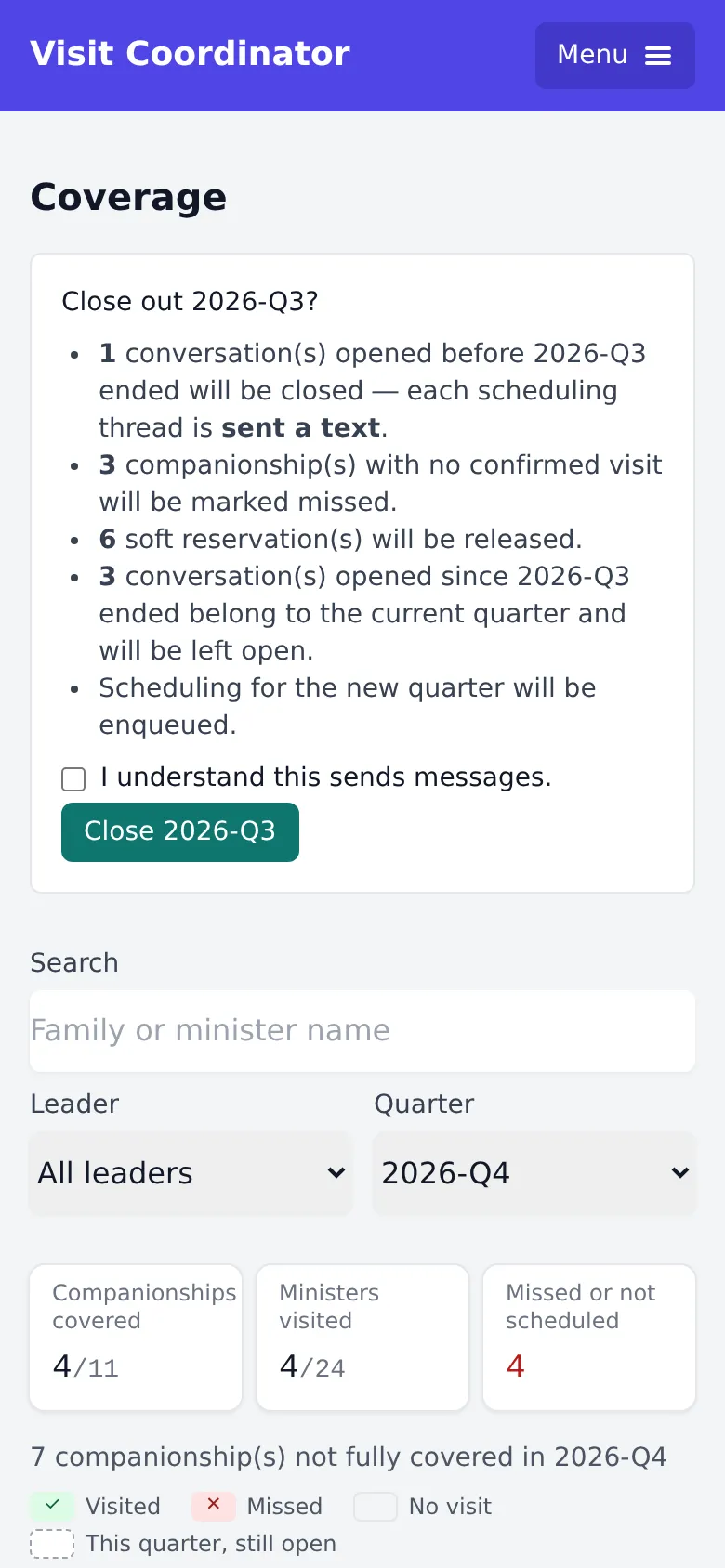
Desktop: confirm step. The panel before you press it is at the top of the Coverage screenshot.
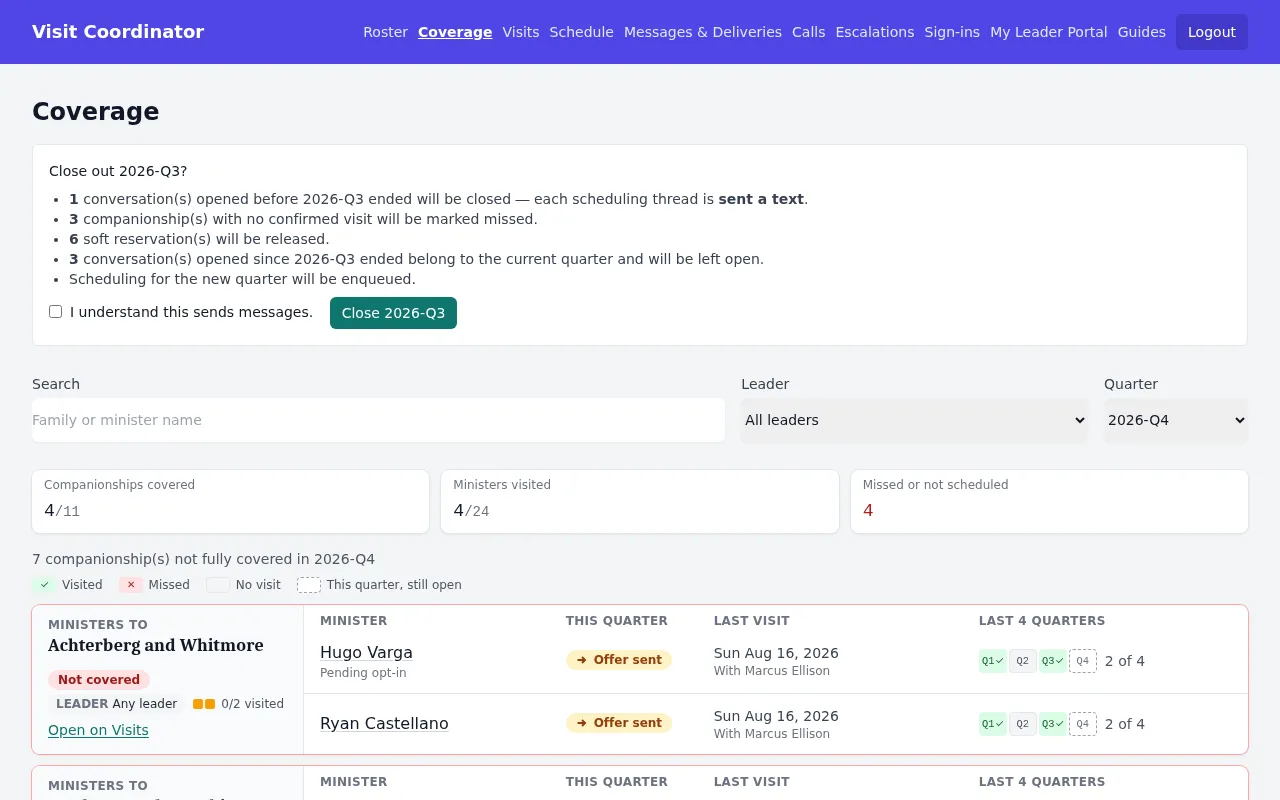
Close-out closes every open scheduling thread (each gets a closing text), marks companionships with no confirmed visit as missed, releases held times, and starts the new quarter's scheduling. It normally runs by itself each day at about 9–10 AM ward time once the quarter has ended, so it is usually done on the new quarter's first morning.
The panel says whether last quarter is closed, in progress, or "has ended and has not been closed". Only that last state needs you:
- Press Close out Q….
- Read the counts: conversations opened before the quarter ended (to be closed), companionships to mark missed, and held times to release. Conversations opened since the quarter ended belong to the new quarter and are left open.
- Tick I understand this sends messages and press Close Q…. Reload in a minute to see it finish.
Only within 14 days of the quarter's end. After that the panel says the quarter is too far past to close.
People and setup
The roster, signing members up, and companionships. Mostly at the start of a quarter or when someone moves.
Roster → People
Page: /admin/roster

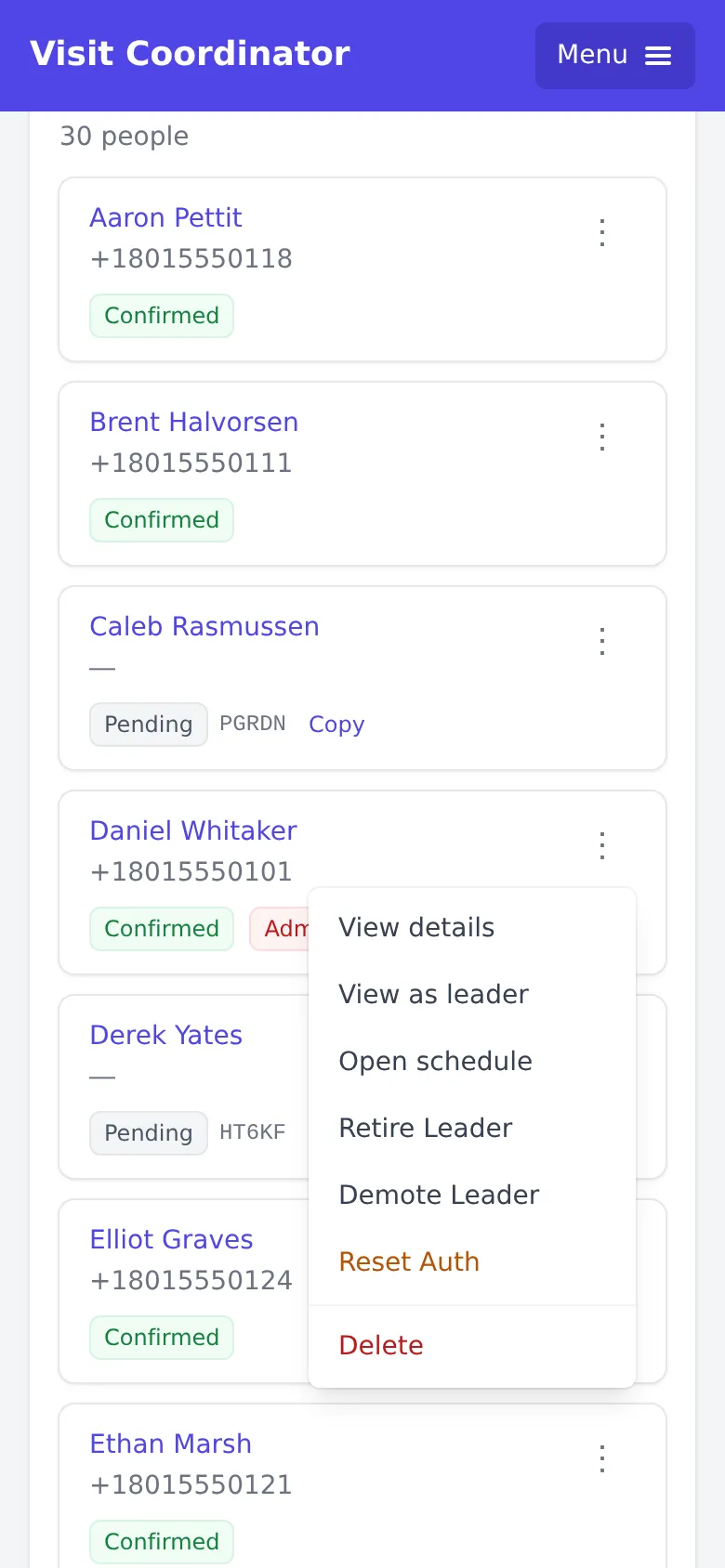

Desktop: People · ⋮ menu · Retired
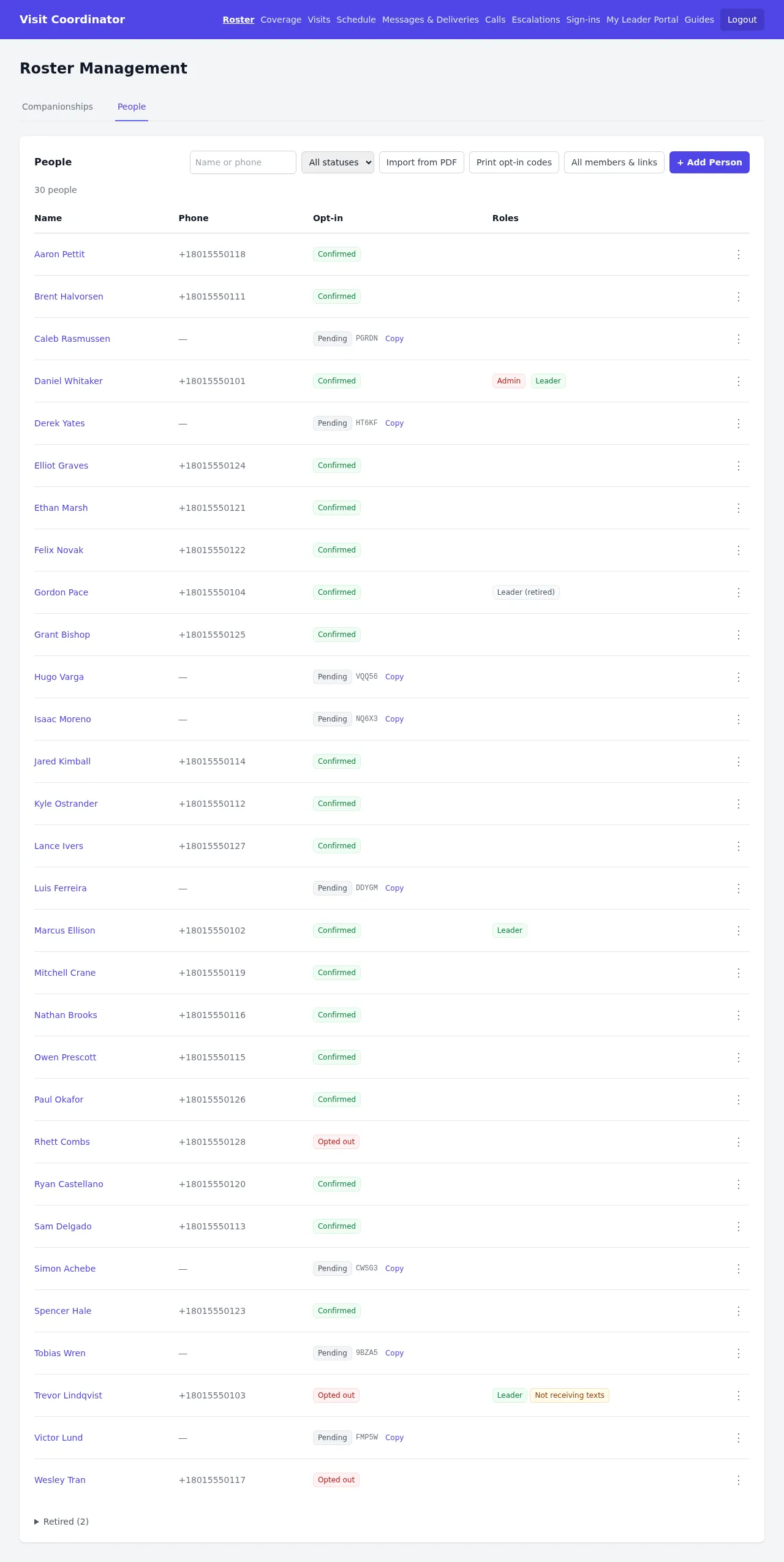
Everyone on the roster with their number, roles, and the column that matters most: whether they can be texted.
- Confirmed: signed up at
/join. Gets texts. - Pending: not signed up. Gets no texts. Their opt-in code is shown with Copy.
- Opted out: texted STOP. Only they can undo it.
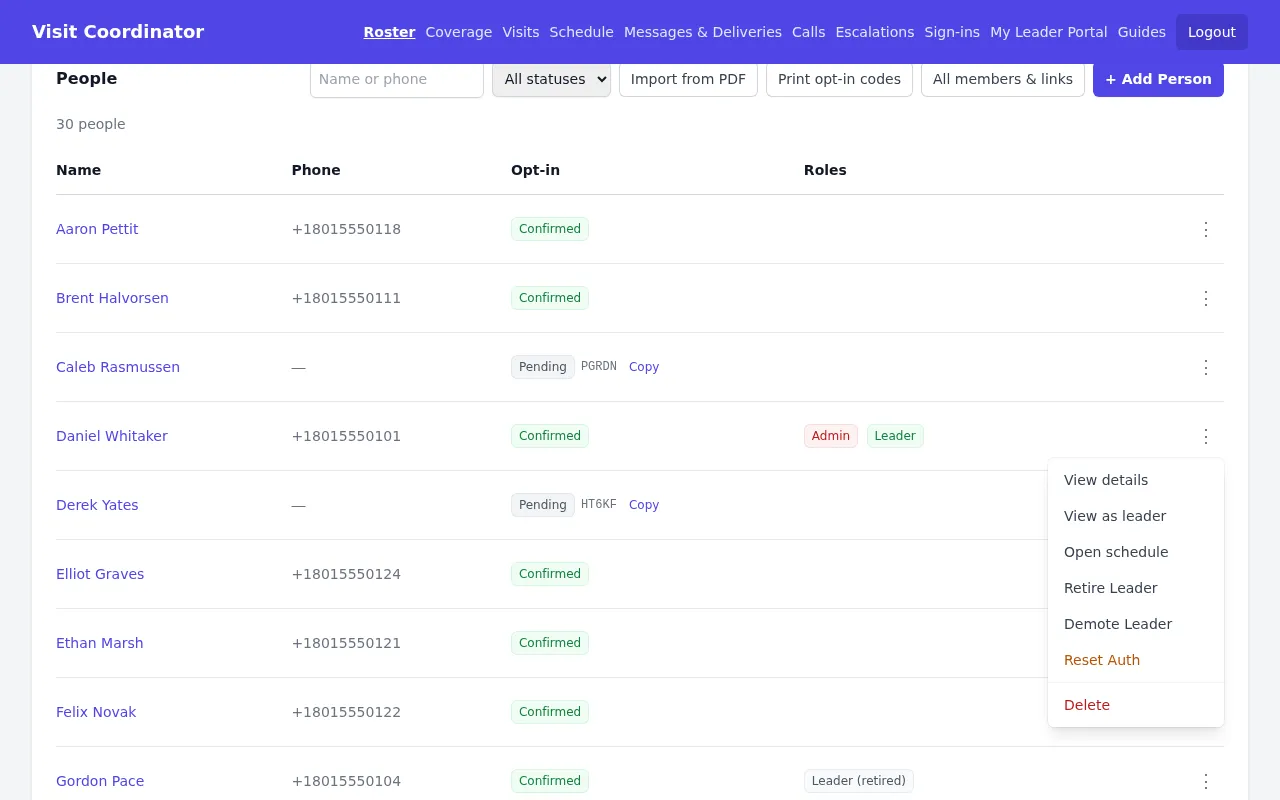
The ⋮ menu on each row: View details · View as leader · Open schedule · Retire Leader · Demote Leader / Make Leader · Make Admin · Reset Auth · Delete.
For a leader stepping down, use Retire Leader: it keeps their history and can be undone. Demote is refused for anyone with visit history. Their companionships become Unassigned; the banner links to them so you can use Change leader.
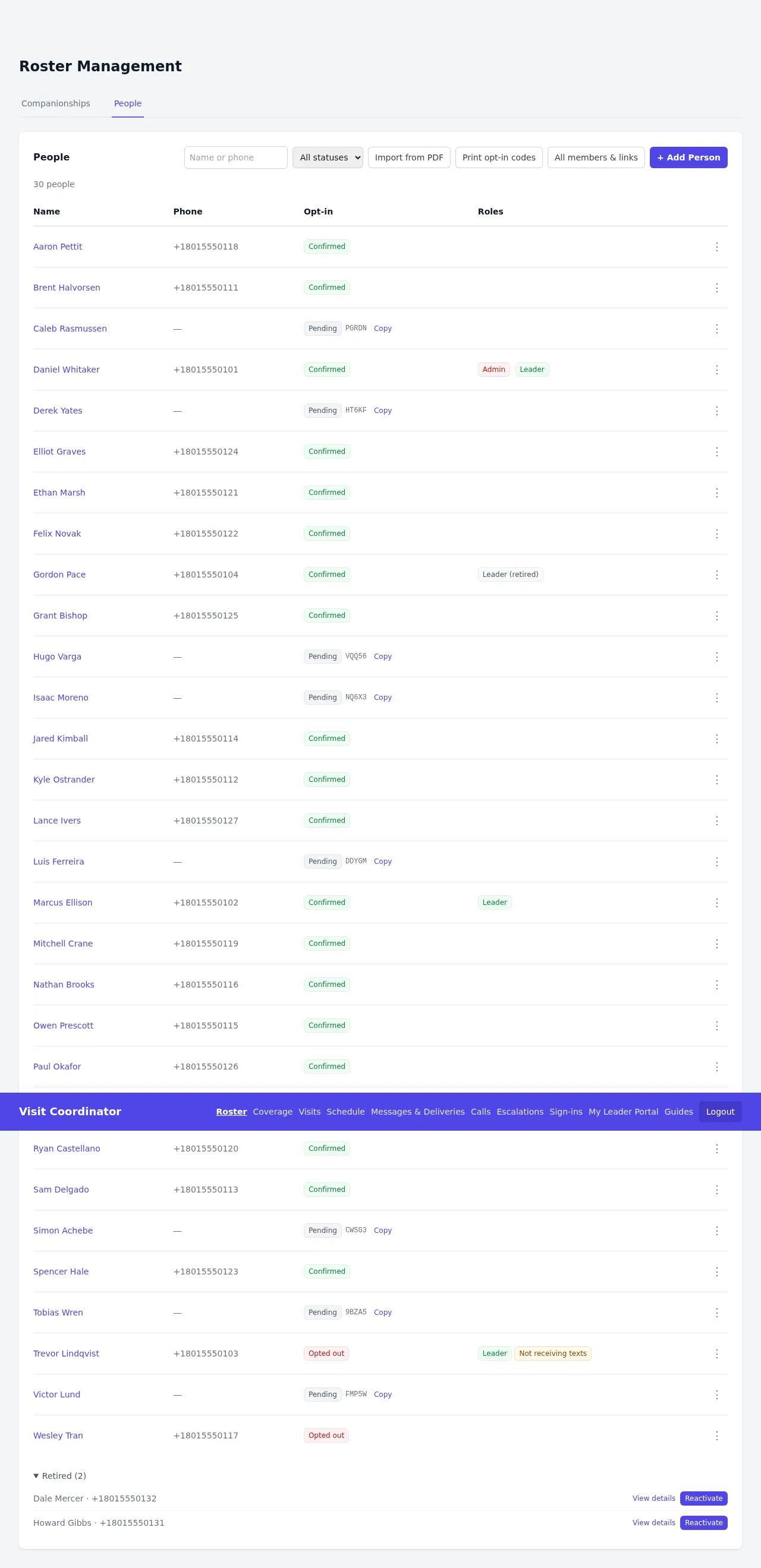
Can't find someone? Open Retired (N) at the bottom of the list and press Reactivate. Re-adding them instead creates a duplicate who has to sign up again. Avoid Delete; it erases their history.
A person's details page
Page: ⋮ → View details, or click a name on Visits
Desktop: details page
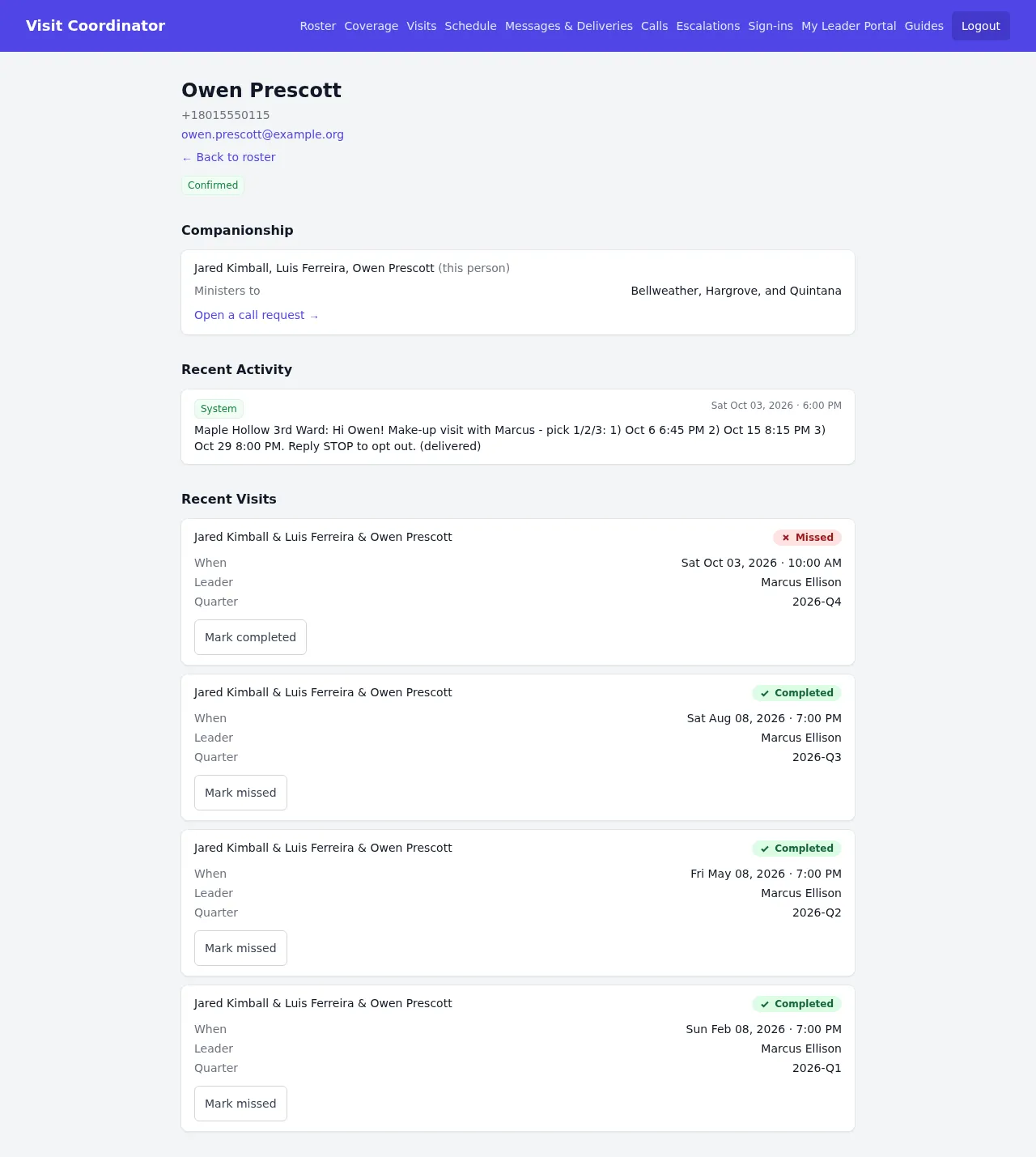
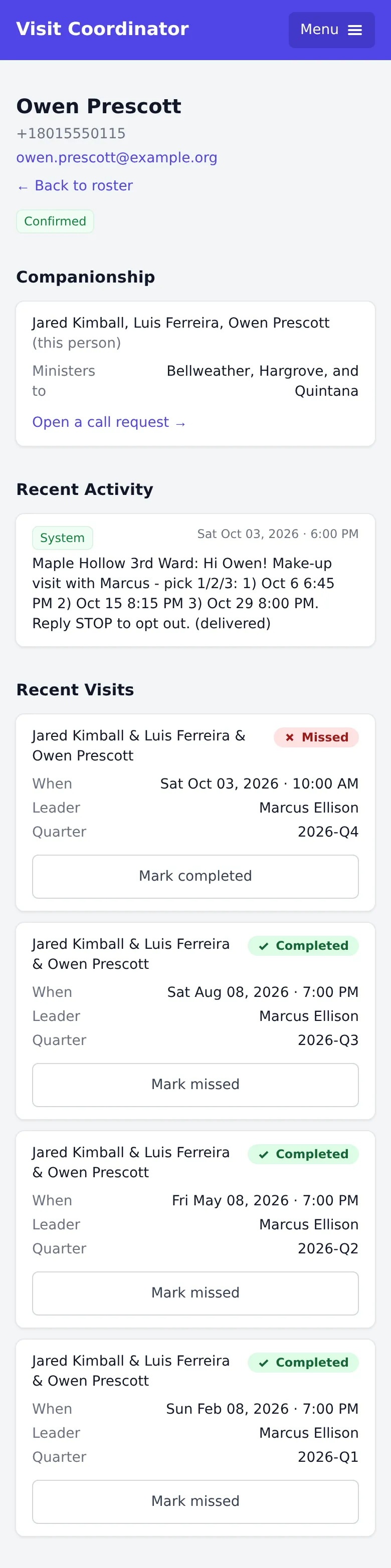
Their number and status, their companionship (they're listed as "(this person)") and the families they minister to, the latest texts to and from them under Recent Activity, and Recent Visits.
Each visit shows this person's own status. Once a visit's time has passed, Mark completed / Mark missed record only this person, the same as on Visits. Open a call request → puts them on the Calls page.
Getting members signed up
Page: Roster → All members & links · Print opt-in codes

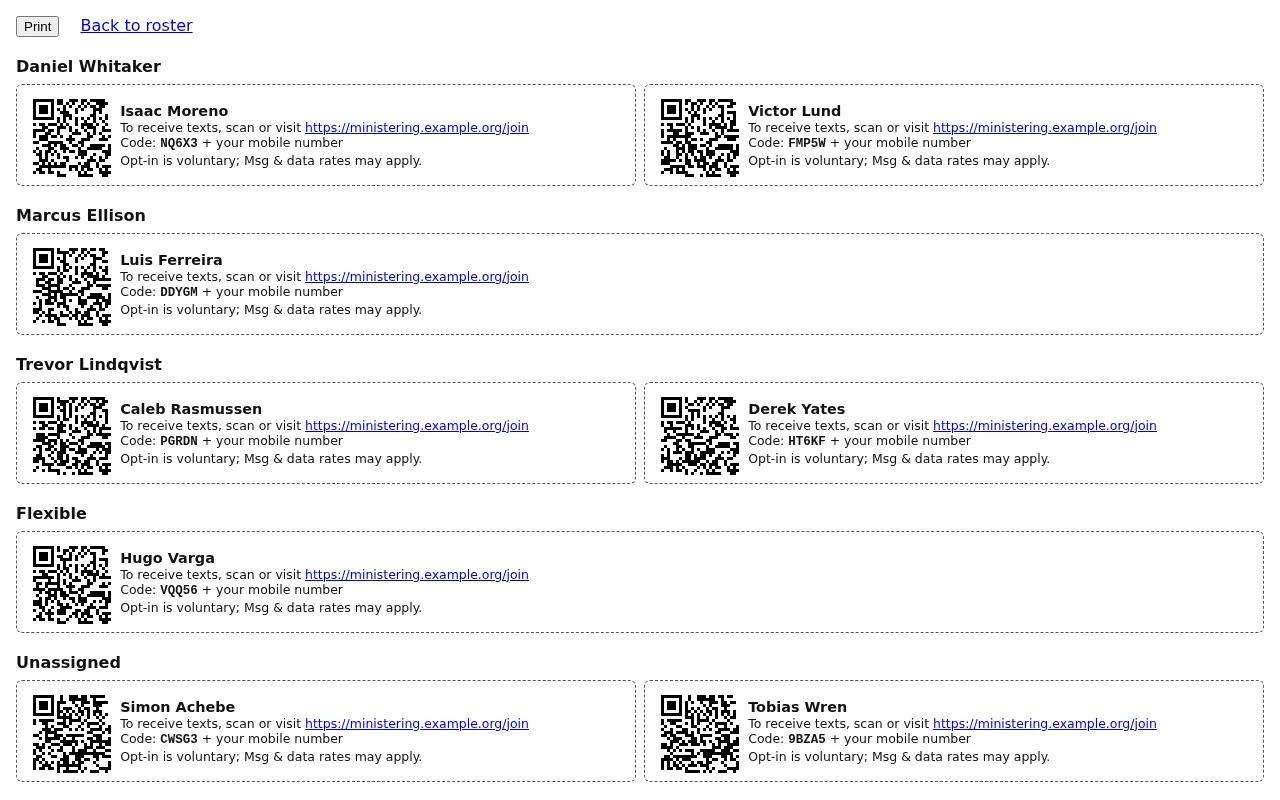
Desktop: All members & links. The opt-in slips are a printed page, shown as on a desktop.

Members sign themselves up at /join with their code. Only they can do it. You get the code
to them in one of two ways.
By text from your own phone. All members & links lists every person with their code and join link. Filter to Pending, then for each one press Copy number and Copy item to paste a ready-made invitation into your own messages. Edit invitation template changes your wording.
On paper. Print opt-in codes makes cut-apart slips for every pending person, grouped
by leader, each with a QR code that opens /join with the code filled in.
Companionships and importing
Page: Roster → Companionships · Import from PDF

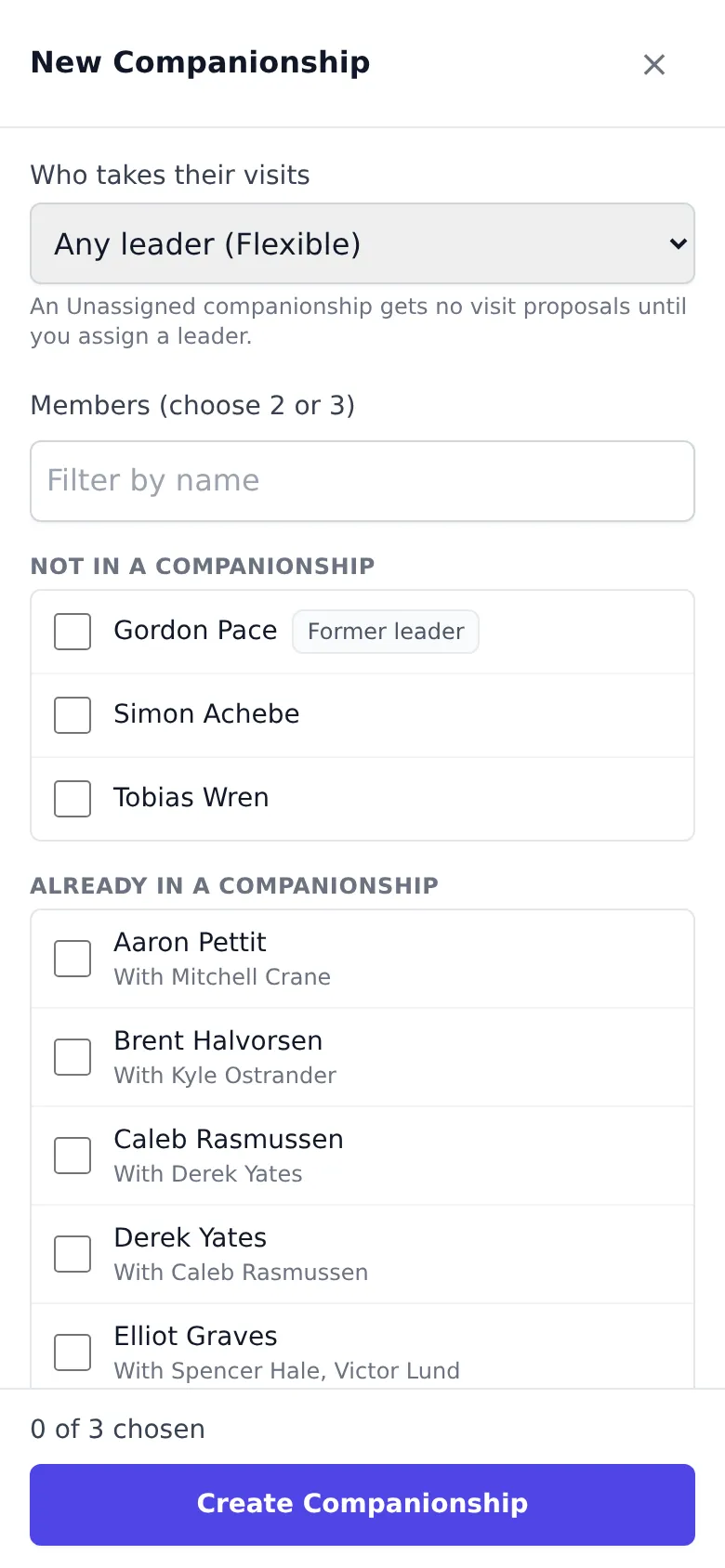
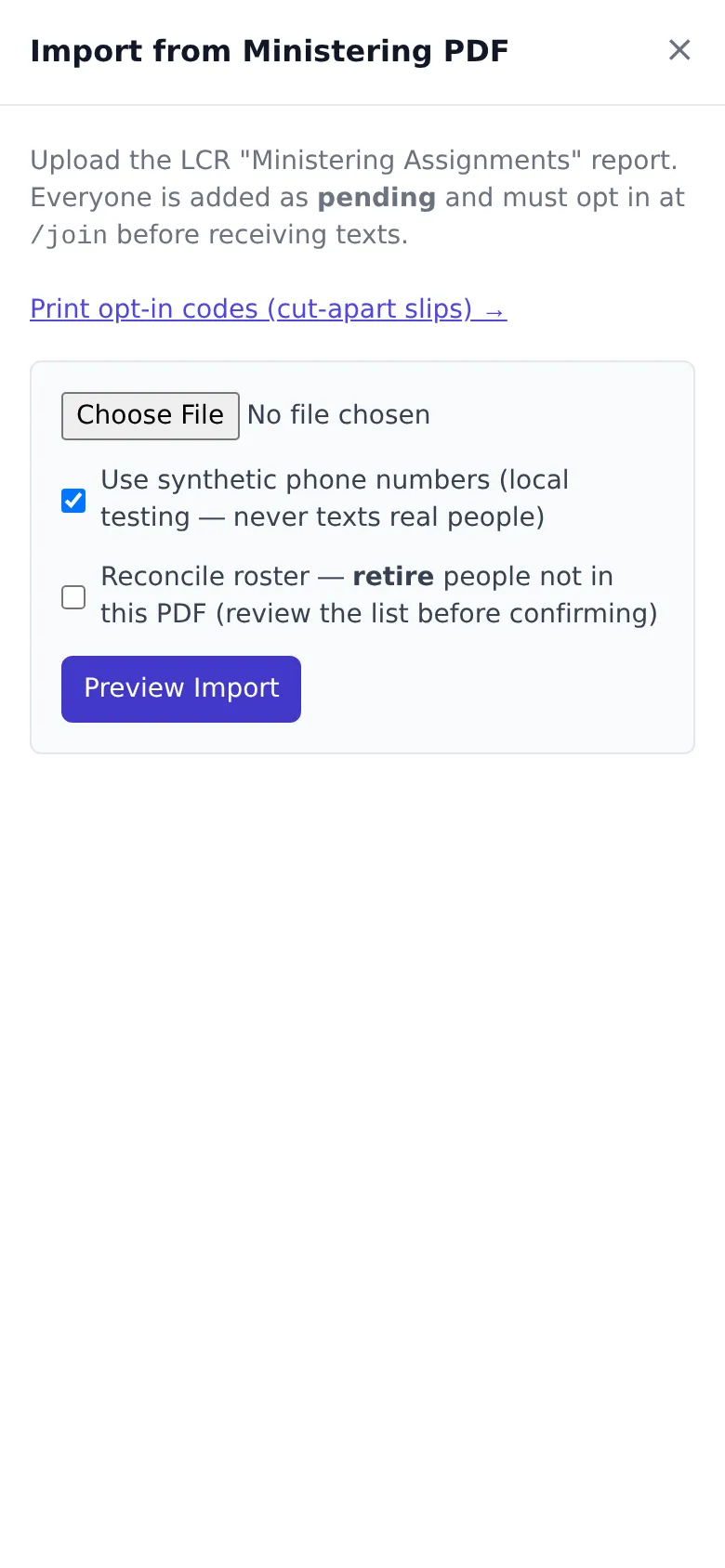
Desktop: Companionships · New companionship · Import from PDF
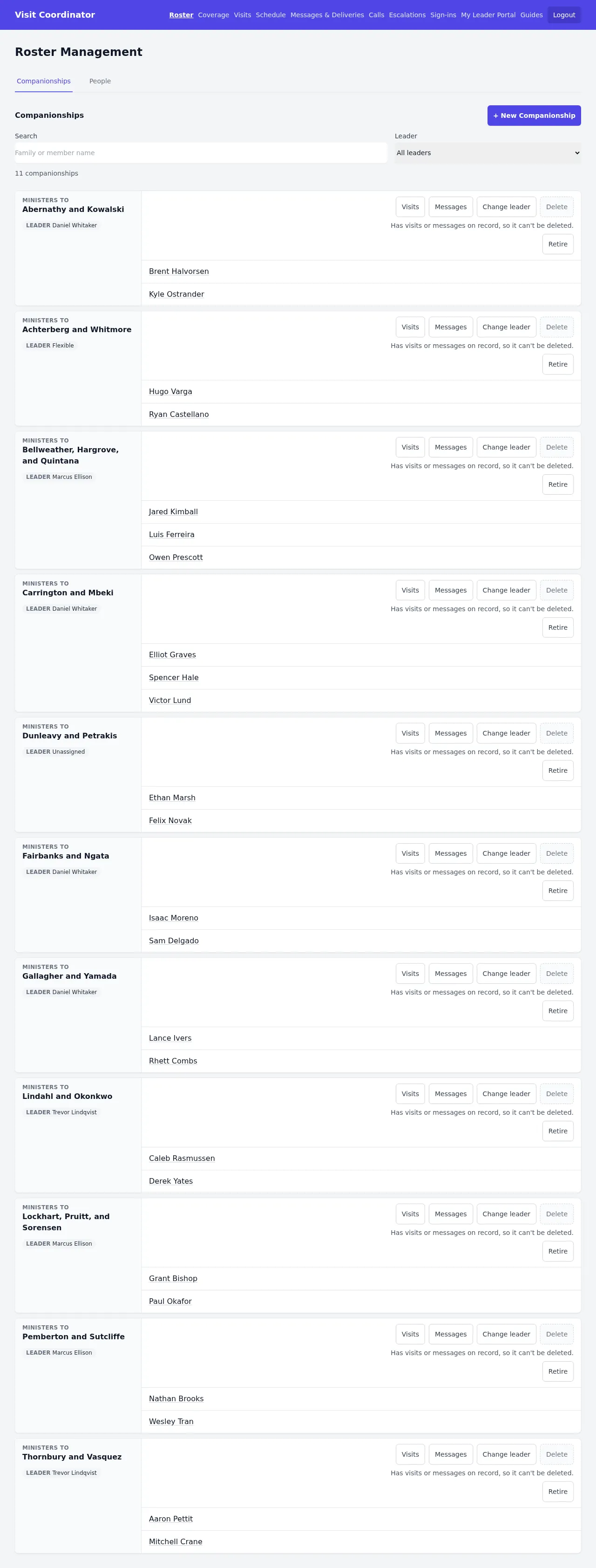
One card per companionship: the families, the members, and the leader badge, which reads a name, Flexible (any leader), or Unassigned. An Unassigned companionship never gets offered times, so fix those first: Change leader on the card lets you pick a leader or Any leader (Flexible). A specific new leader can't be chosen while the old leader's offered times are still out; Flexible always can.
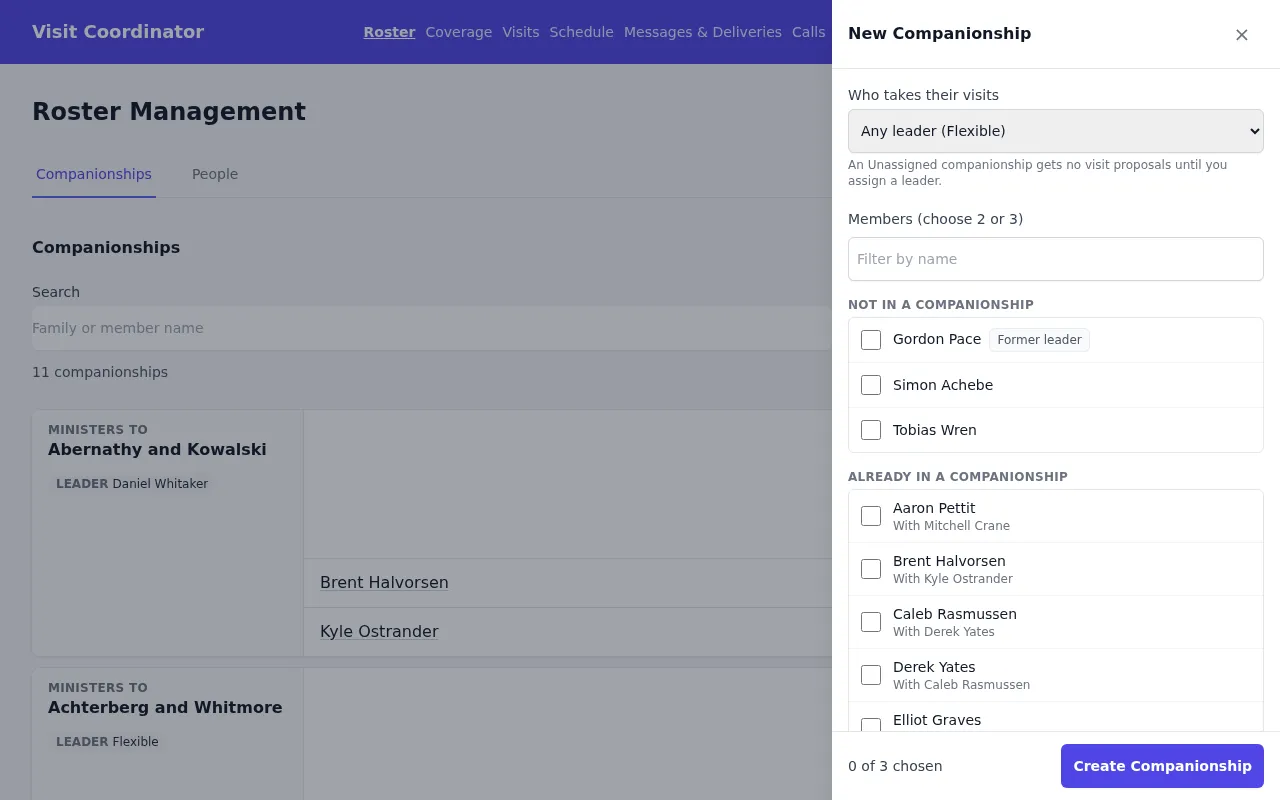
+ New Companionship opens a drawer. Tick 2 or 3 members; people already in a companionship are listed separately with who they're with, and a released leader can be picked like anyone else (marked "Former leader"). Then choose Who takes their visits: Any leader (Flexible), a specific leader, or Unassigned.
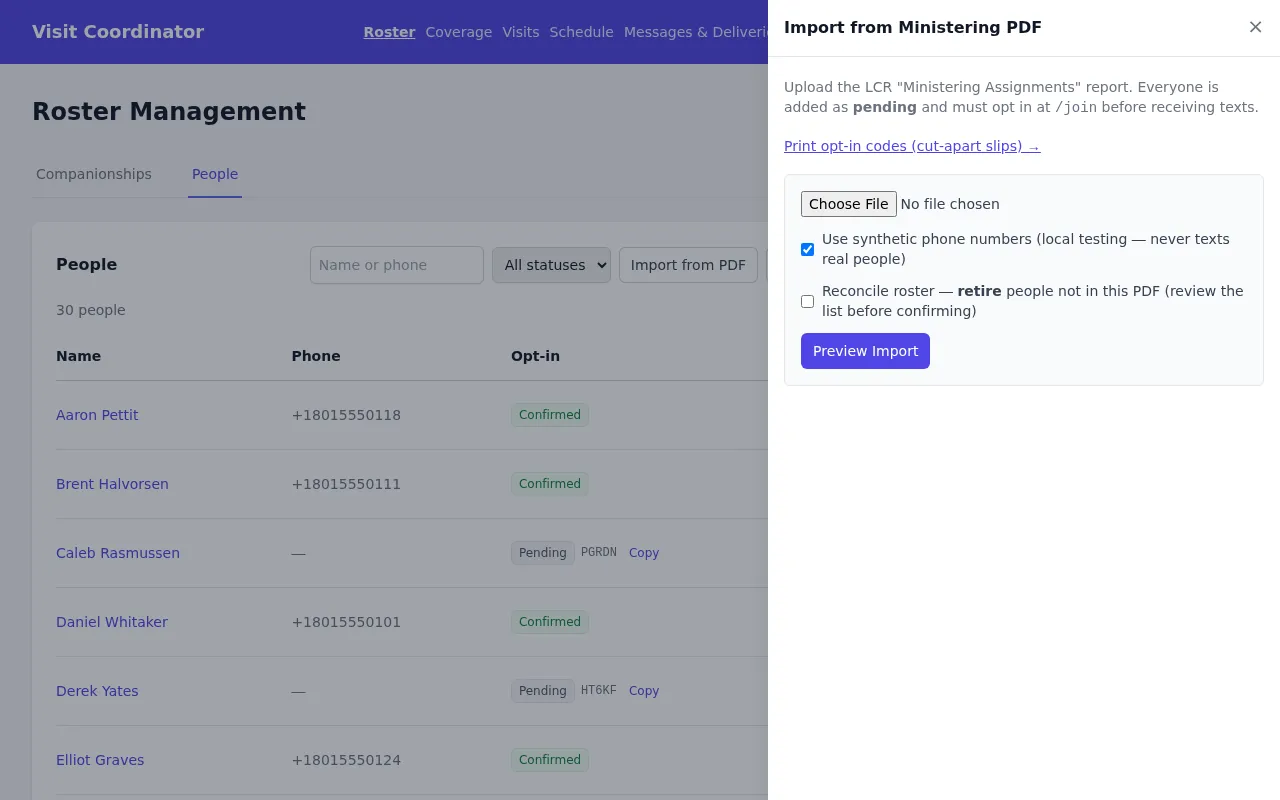
Import from PDF. Upload the LCR Ministering Assignments PDF and press Preview Import. Everyone new arrives as Pending; the PDF is not consent. Tick Reconcile roster only when the PDF is the whole ward's current roster, and read the red "Will be retired" list on the preview before confirming.
"Use synthetic phone numbers" appears in these screenshots only because they come from a test setup. It isn't shown on the live site.
View as leader
Page: Roster → ⋮ → View as leader

Desktop: View as leader
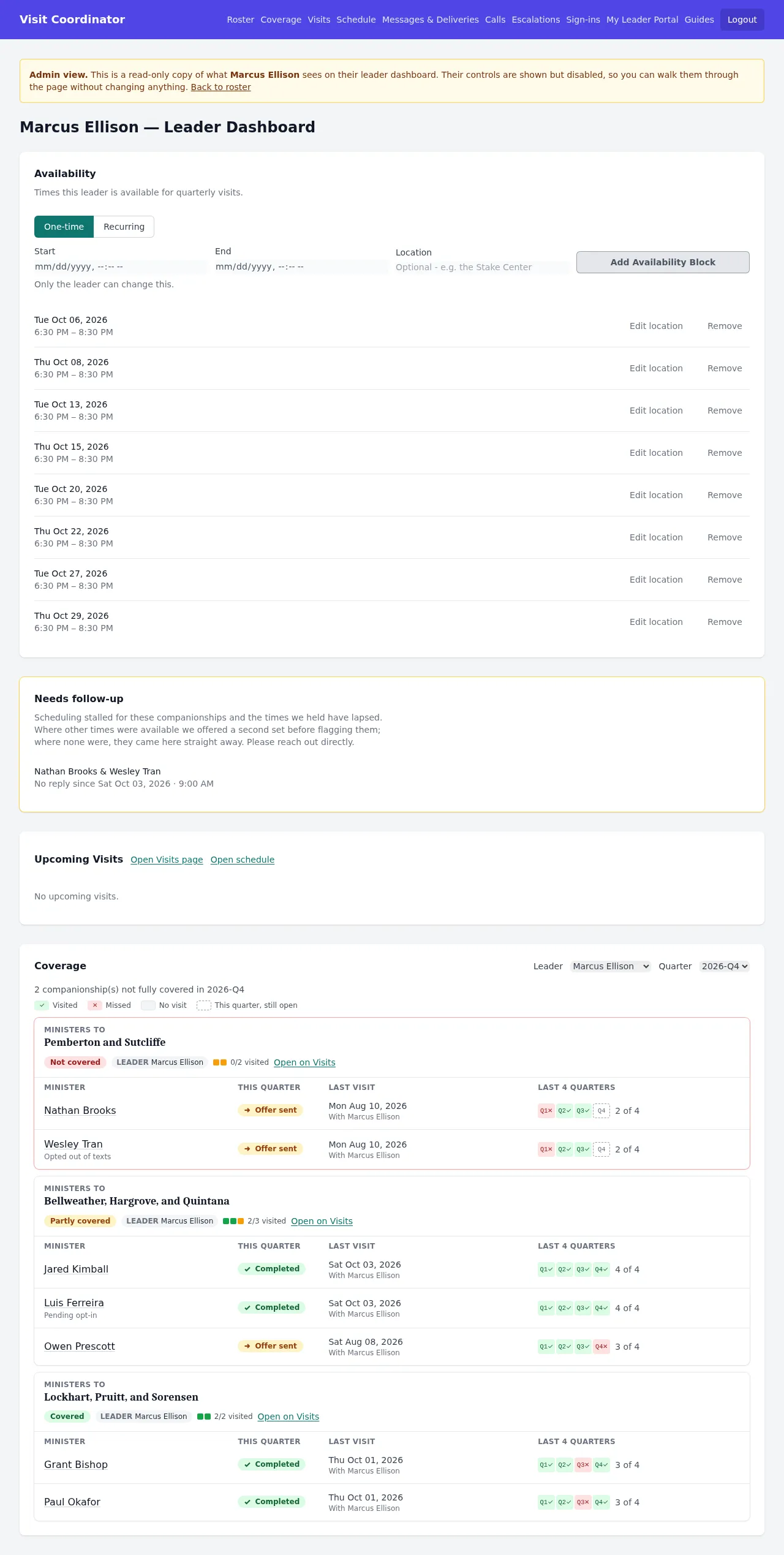
A read-only copy of a leader's own dashboard, under a yellow "Admin view" banner: their availability, anything needing their follow-up, their confirmed visits still ahead (with Open Visits page and Open schedule), and their companionships' coverage.
Use it when a leader says "nothing got scheduled". If they have no availability in the quarter, that's the answer. You stay signed in as yourself, every change button is disabled ("Only the leader can change this."), and each view is logged.
Checking sign-ins
Sign-ins
Page: /admin/security

Desktop: Sign-ins
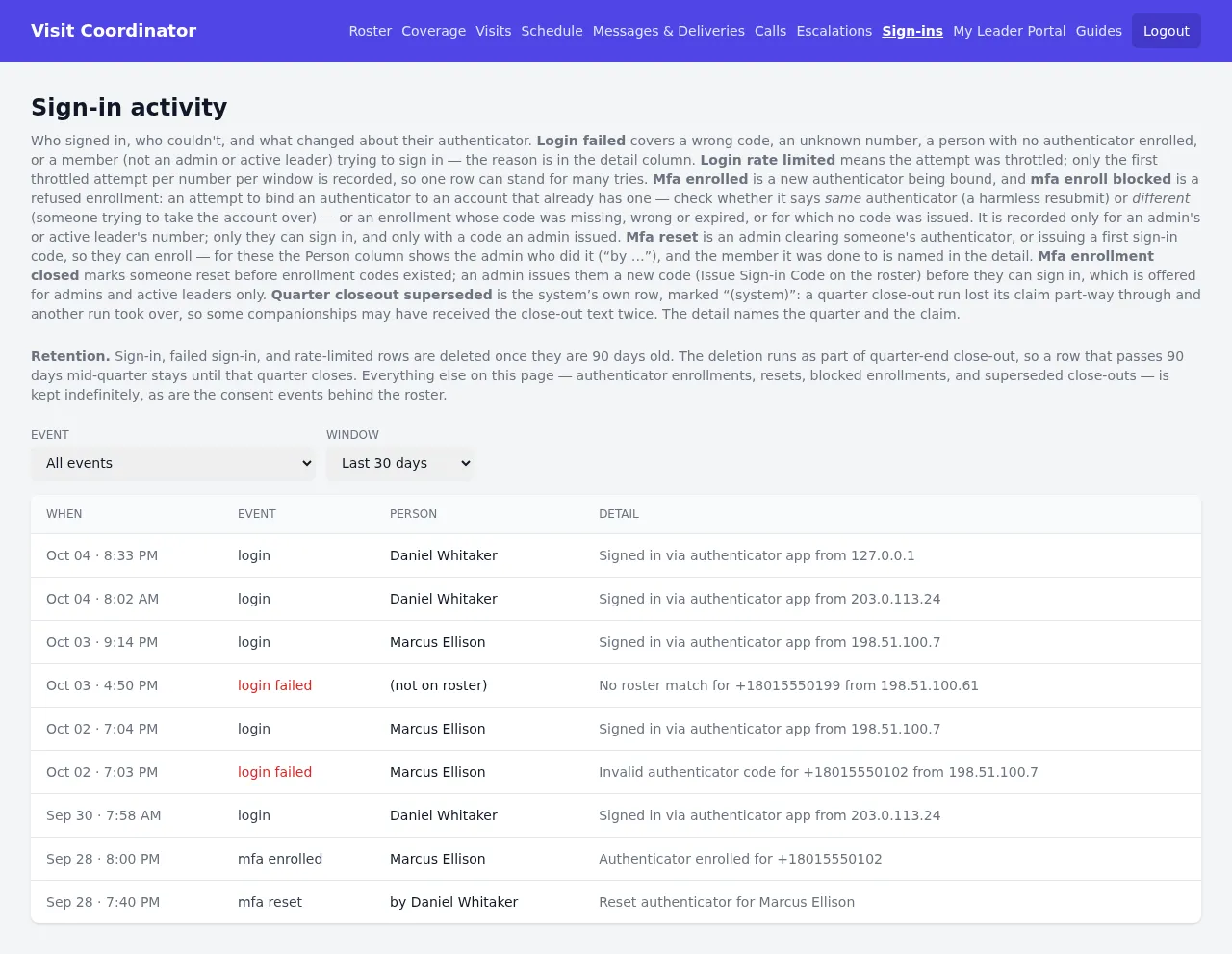
Who signed in and when, failed attempts, authenticator resets, and enrollments. Filter by event and by window.
When a leader says "I couldn't get in on Sunday", look here. After a Reset Auth, watch for their "mfa enrolled" row to confirm they're back in.